You must provide the ID of the associated resource when making most job requests. For example, you must provide the sourceId when submitting a job to load a source, and you must provide a jobId when stopping a running job.
Obtaining the jobId
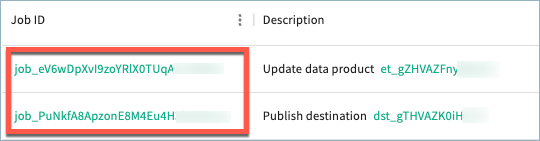
jobIdThe job ID is included in the create request response. You can also obtain a list of job IDs by submitting a list request to the Jobs API.
Job IDs are also available in the Tamr Cloud UI on theJobs page, as shown below. Select the ID to automatically copy it to your clipboard.
Obtaining the sourceId
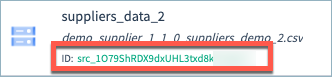
sourceIdSource IDs are available in the Tamr Cloud UI on the Sources page, as shown below. Select the ID to automatically copy it to your clipboard.
Obtaining the dataProductId
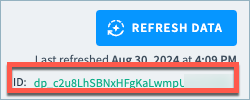
dataProductIdThe data product ID is available in the Tamr Cloud UI. Select the ID to automatically copy it to your clipboard.
Non-legacy data products
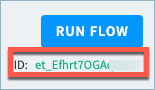
For non-legacy data products, the data product ID is available on the data product's Configure Data Product page, as shown below. See Data Product Guides for the current list of non-legacy data products.
Legacy data products
For legacy data products, the data product ID is available on the data product's Configure Flow page, as shown below. See Legacy Data Product Templates for the current list of legacy data products.
Obtaining the workflowId
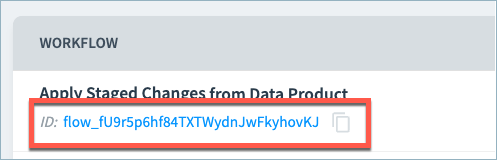
workflowIdWorkflow IDs are available on the Workflows page, as shown below.
Obtaining the destinationId
destinationIdThe destination ID is available in the Tamr Cloud UI.
Non-legacy data products
For non-legacy data products, the destination ID is the exact name of the publish configuration. This ID is available on the data product's Publish page, as shown below. Provide the exact string. For example, if the name of the configuration is Test 123, the destinationId is Test 123. Select the ID to automatically copy it to your clipboard. See Data Product Guides for the current list of non-legacy data products.
Legacy data products
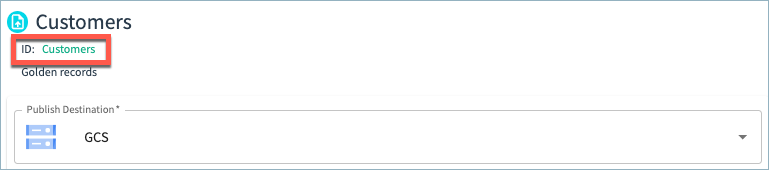
For legacy data products, the destination ID is available on the data product's Publish page, as shown below. Select the ID to automatically copy it to your clipboard. See Legacy Data Product Templates for the current list of legacy data products.
RealTime datastore
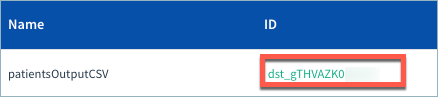
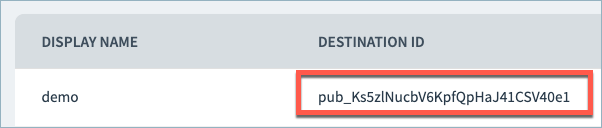
For publishing RealTime datastore dataset from the System of Record, destination IDs are available on the Destinations page.
Obtaining the tableId
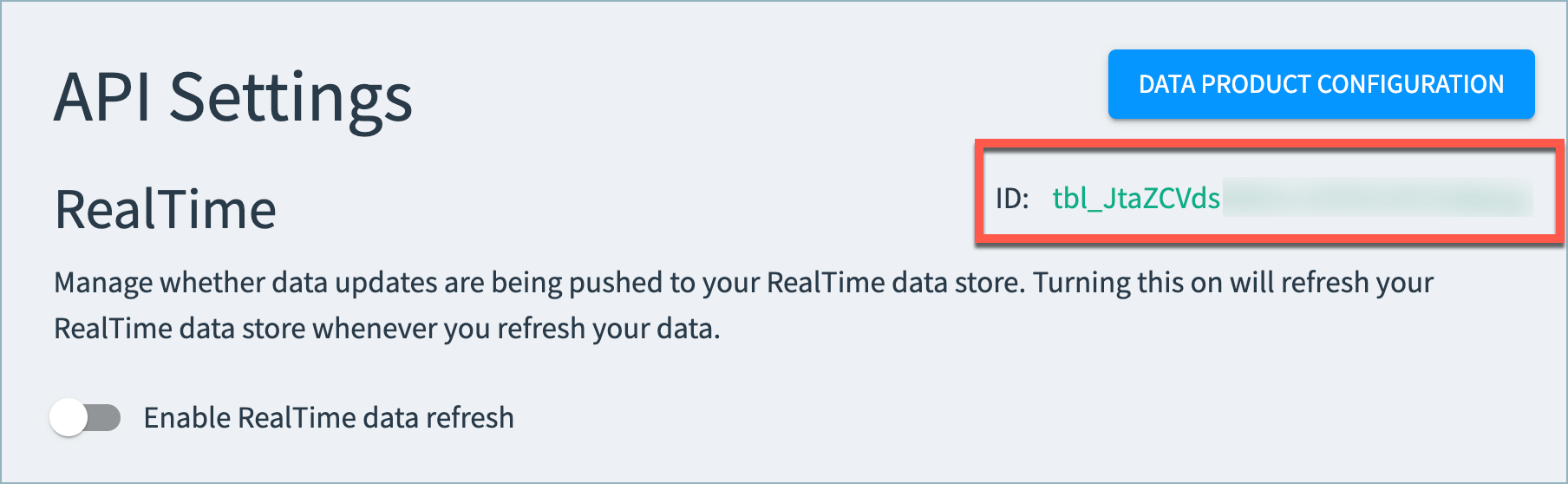
tableIdMost Tamr RealTime API calls require a tableId parameter. This parameter is available on the RealTime API Settings page for your data product.
To navigate to this page, select the RealTime Settings option on the Configure Data Product page.
The tableId is available below the Data Product Configuration option.
RealTime Data Products Table ID (Limited Release)
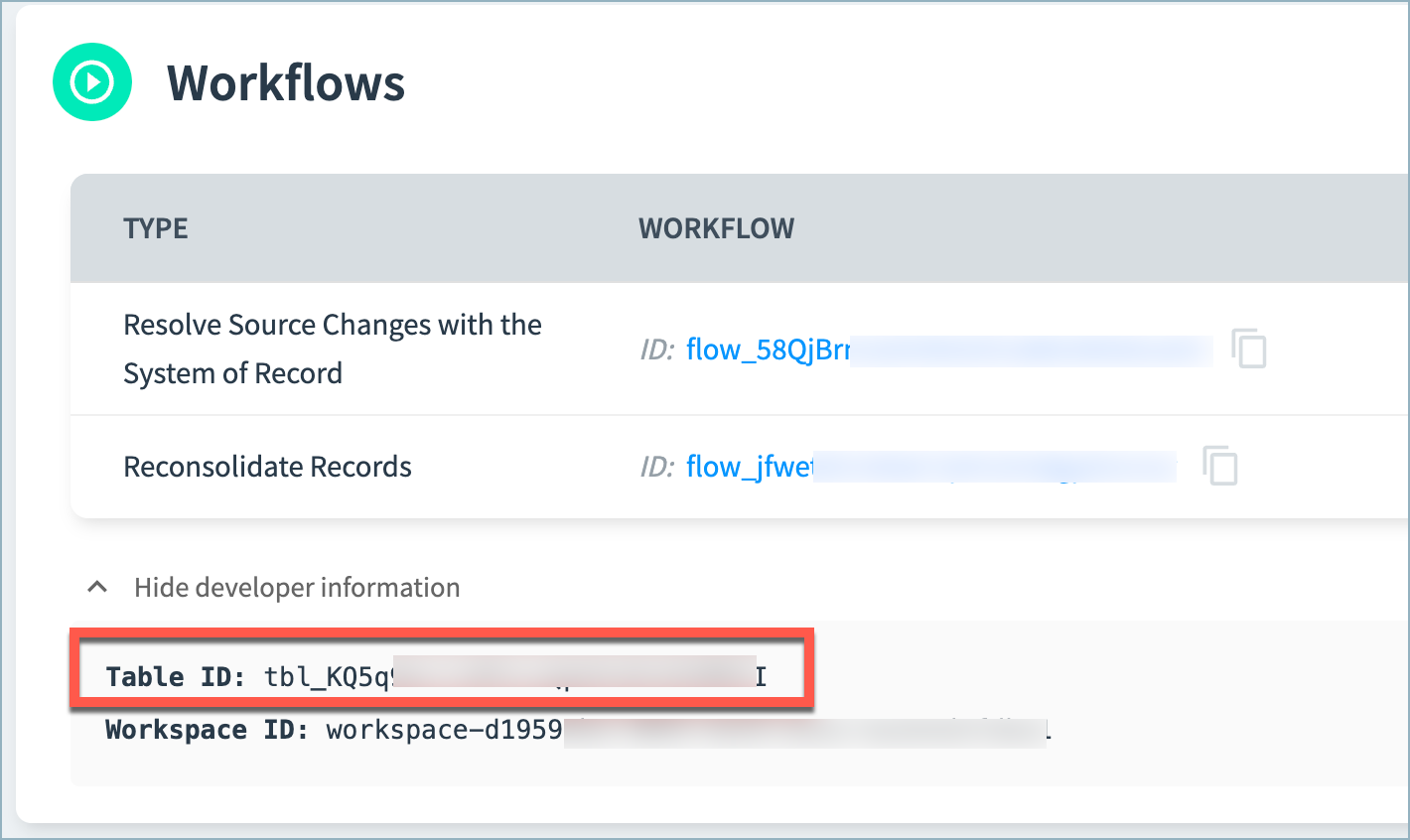
If you are using a limited release RealTime Data Product, you can obtain the tableId from the data product's Configuration page.
In the Workflows section, select the Show developer information option. The tableId is shown below the workflows table.
Obtaining the projectId
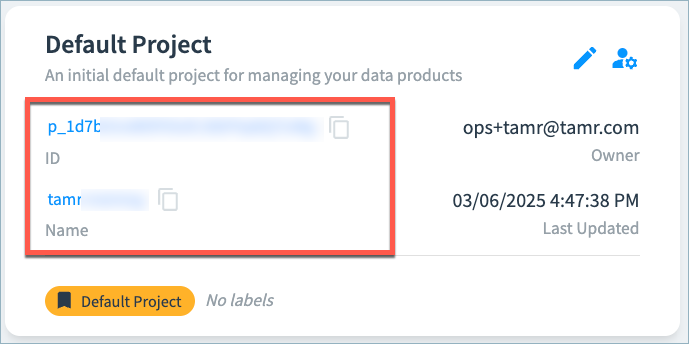
projectIdProject IDs and names are available in the Tamr Cloud UI on the Admin > Projects page, as shown below. Select the ID or name to automatically copy it to your clipboard.