
Managing Relationships
You can create, edit, and remove relationships between golden records using either the Relationships API or from the 360 View page in the UI (depending on your data product role). This topic explains how to manage relationships within the UI.
To manage relationships on the 360 View page:
-
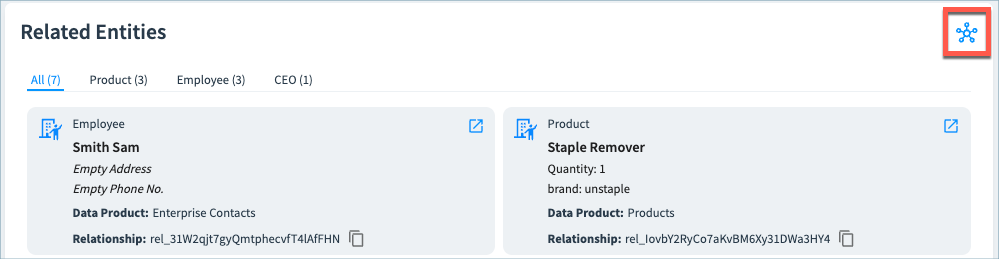
In the Related Entities (or Household Relationships) section, select the View Relationships icon.
-
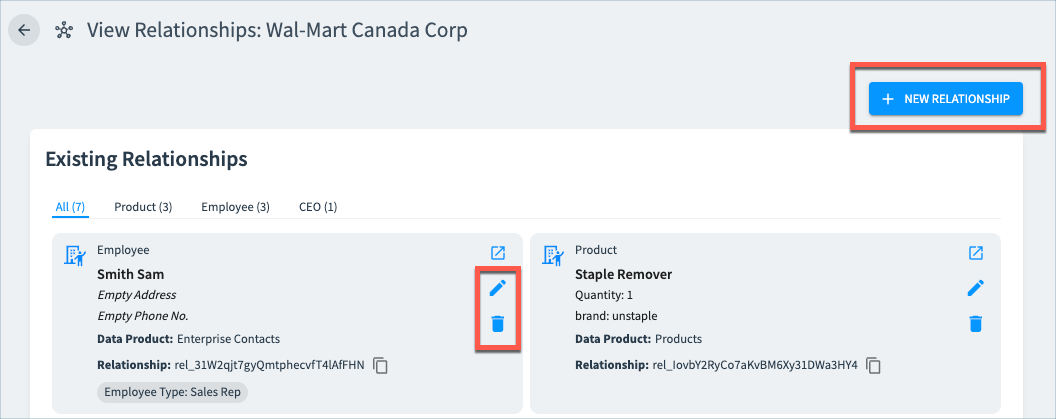
On the View Relationships page, select Edit or Delete icon to modify or delete an existing relationship, or the New Relationship option to create a new relationship for this record.
-
If you are creating a new relationship:
-
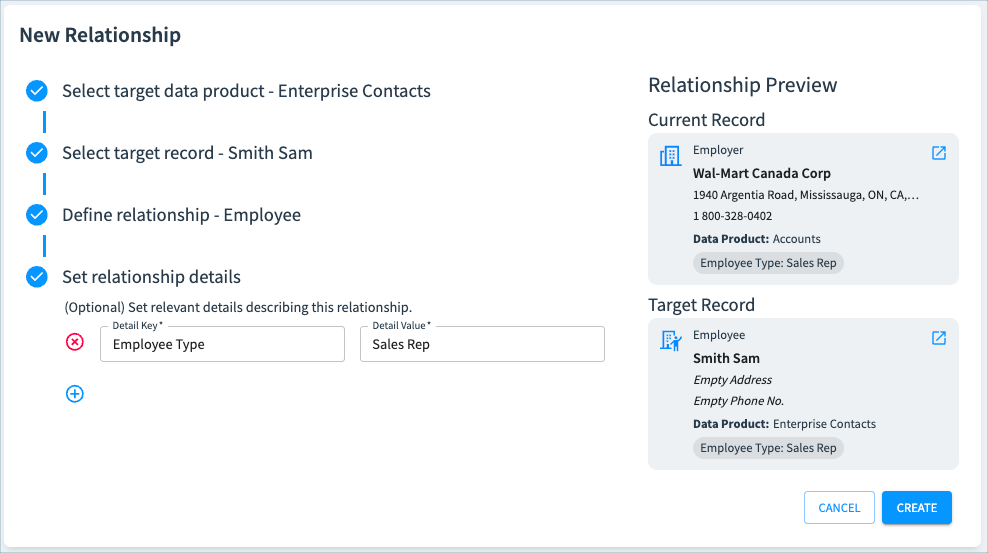
Choose the data product containing the related record.
-
Search for and select the record. You can search for a specific record ID, or search based on attribute values. Once selected, this record appears in the Target Record section.
-
Select the relationship type from the Define relationship dropdown.
-
In the Set relationship details section, add any optional labels for this relationship as key/value pairs.
-
Select Create. The new relationship is shown in the Existing Relationships tile on the View Relationships page, and in the Related Entities section of the 360 View page.
-
Updated 9 months ago