
Configuring an ADLSv2 Private Link
To configure an ADLSv2 Private Link for data connections:
-
Obtain the full storage account resource ID to provide to Tamr Support ([email protected]).
This ID will be in the format:
/subscriptions/.../resourceGroups/.../providers/Microsoft.Storage/storageAccounts/...
You can obtain this ID in the Azure portal through either of these options:-
Go to the storage account. Select Overview and then JSON View. In the bottom right of the Resource JSON window, select the Copy option.
-
Go to the storage account. Navigate to Setting > Endpoints. Select the Copy option for the Storage account resource ID.
See the Microsoft Azure instructions for more details on obtaining the storage account resource ID.
-
-
Send an email to Tamr Support ([email protected]) with the storage account resource ID. Tamr Support works with the Tamr Operations team to create a Private Link endpoint and DNS record. When the Private Endpoint and DNS connection are configured, you receive a request on the storage account to accept the private connection. Message text: “Connection request from tamr cloud".
Important: If you are using other Private Link endpoints on the storage account, connections to that account from Tamr will fail until you approve the private endpoint connection in step 3. -
In the Azure portal, approve the request to accept a private connection:
- Go to the storage account. Navigate to Security + networking > Networking.
- Select the Private endpoints tab.
- Find the private endpoint for Tamr in the list and approve the request.
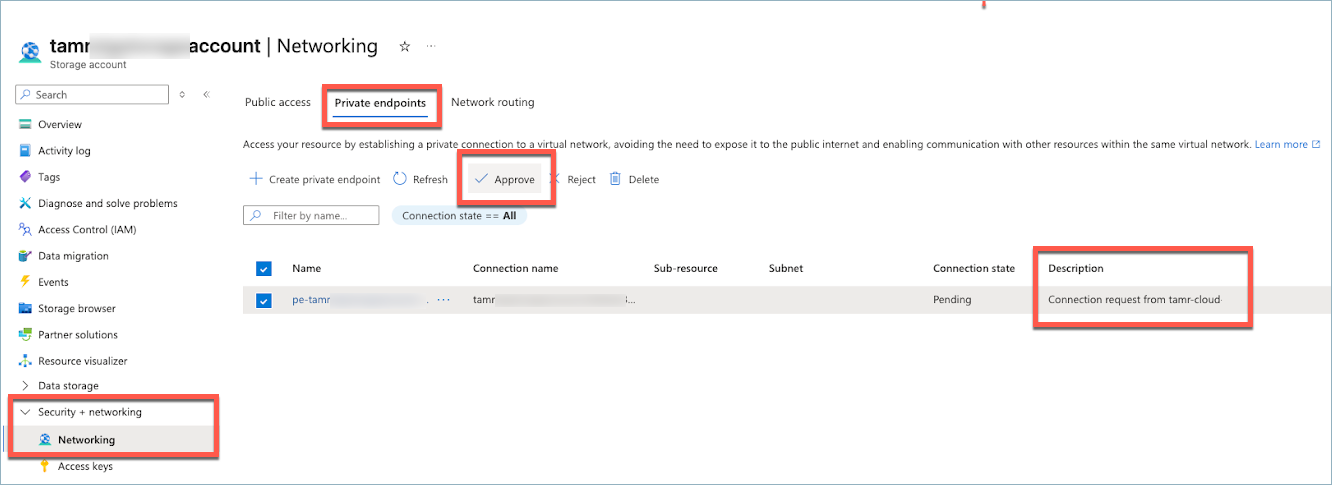
Once the Connection state is approved, the Private Link is fully configured and you can create and use ADLSv2 connections. See Requirements for ADLS2.
Updated 9 months ago