
Adding and Configuring a RealTime Data Product
Limited ReleaseRealTime data products are in limited release. Some functionality is still in development and is subject to change. If you are interested in using these data products, contact Tamr Support ([email protected]).
Follow the instructions in this topic to add and configure:
- RealTime B2B Customers Data Product
- RealTime B2C Customers Data Product
- RealTime Contacts Data Product
- RealTime Healthcare Providers Data Product
Before Adding the Data Product
- Review the default schema for your data product to:
- Learn which attributes are most important for identifying duplicate records.
- Plan how you will map your source attributes to the schema.
- Understand the default record consolidation rules for each attribute, which determine how the golden record value will be selected from clustered source records.
- Add your source data to Tamr. See Adding Source Data.
Initial Data Product Configuration
Step 1: Add the Data Product
To add a data product:
- On the Data Products page, select Add Data Product.
- Choose the type of data product you want to add, and then select Next.
- Enter a name and optional description. Names must be unique.
- If needed, update the singular and plural name for the entities in the data product. These values are used to refer to the data product entities throughout the UI. You can change these to better reflect the data you are mastering.
For example, the default values for the entities name in a B2B Customers data product are Customer and Customers. You might update them to "Supplier" and "Suppliers" or "Provider" and "Providers" - Choose Create.
The configuration page for the new data product opens. The default data product configuration, including the default unified schema and record consolidation rules, is listed in Pending Changes. Do not apply these changes yet.
Step 2: Add Sources and Map the Schema
To add sources and map schema:
-
In the Sources & Schema Mapping card, select Review All. The Sources & Schema Mapping page opens.
-
Select and add a source dataset from the Add Sources dropdown. Repeat to add each source for this data product.
-
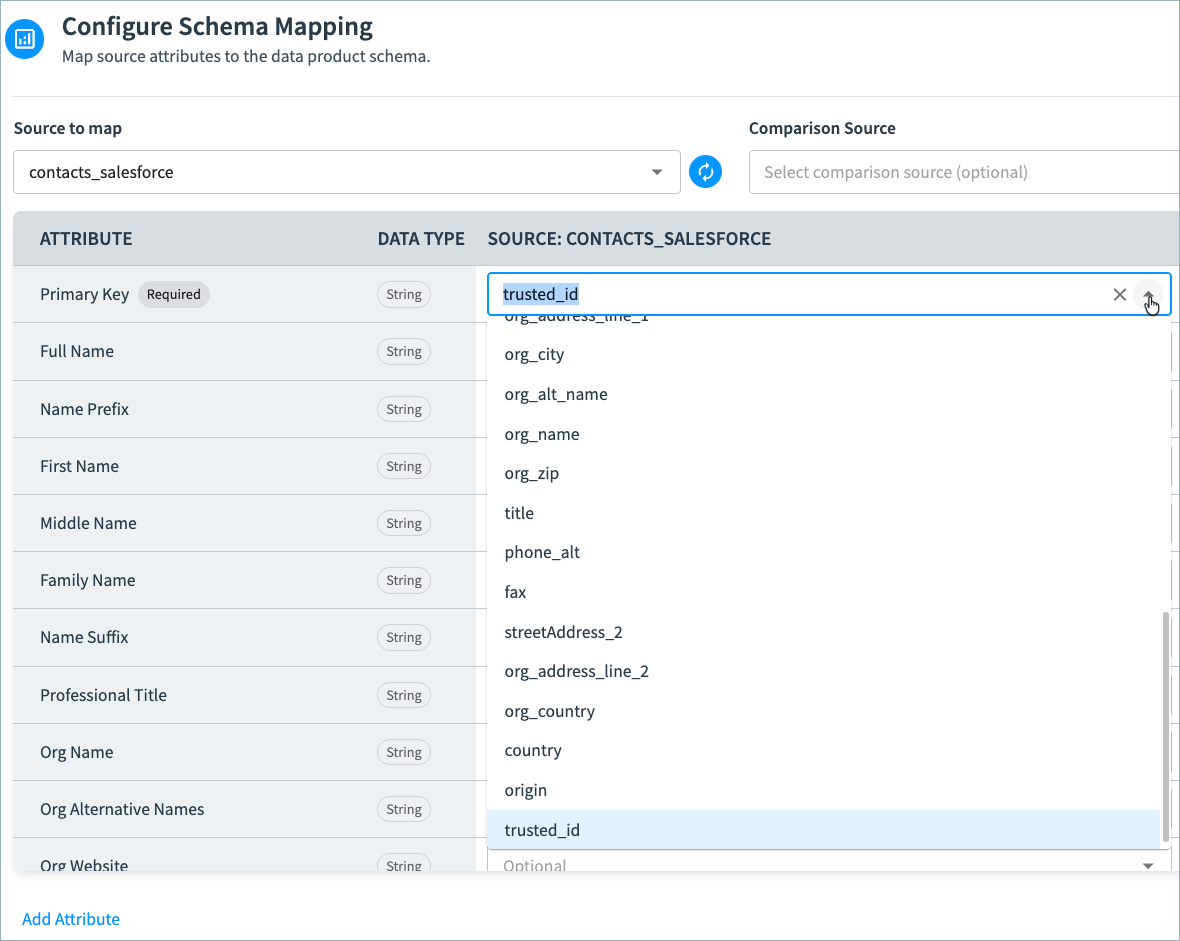
In the Configure Schema Mapping section, select a source to map its fields to the attributes in the data product schema. Tamr automatically maps fields when it identifies a high-confidence match.
-
Map a field in your source dataset to as many fields in the data product schema as possible.
-
For data products that include a Full Name attribute (RealTime B2C Customers, RealTime Contacts , and RealTime Healthcare Providers), if you have not mapped an attribute to Full Name for a given source, you can derive the value for this attribute from a combination of other Name fields in that source. This ensures that a Full Name is available in your golden records and 360 pages.

-
Select Derive in the Full Name row. The Configure Derivation section opens, in which you can choose which Name attributes will be used in the Full Name value, and their order.
-
In the Configure Derivation section, reorder the Name attributes as needed and remove any attributes you do not want to include in the Full Name value.
-
Select Apply Derivation.
-
If you need to edit the configuration, select Edit derivation in the Full Name row. You can also clear this derivation if need (for example to map a source field in the dataset to this attribute).

-
-
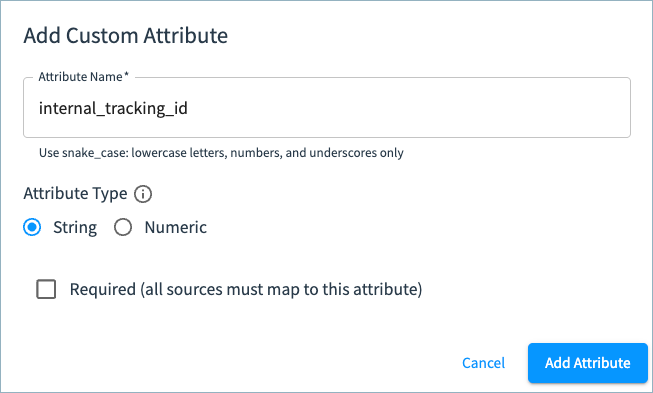
If needed, add and map custom attributes by selecting Add Attribute below the defined schema. Enter a name for the attribute and select the data type. If this attribute is required (meaning that all sources must map a field to this attribute), select the Required checkbox.
-
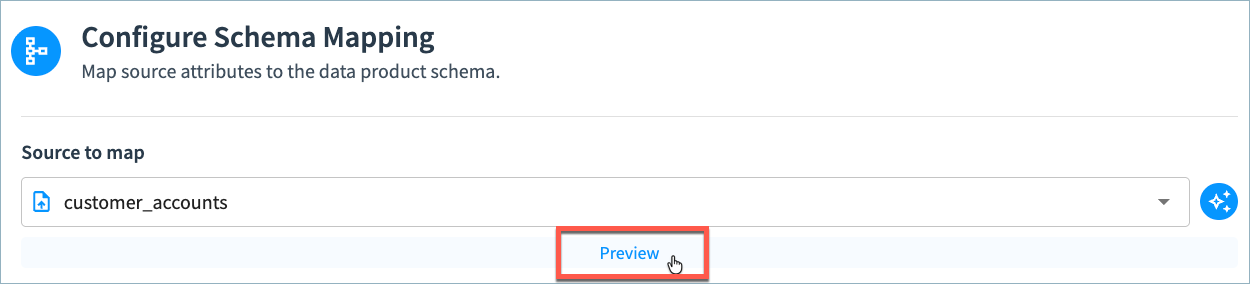
Optional: Preview your attribute mapping. Select the Preview option below the source name.
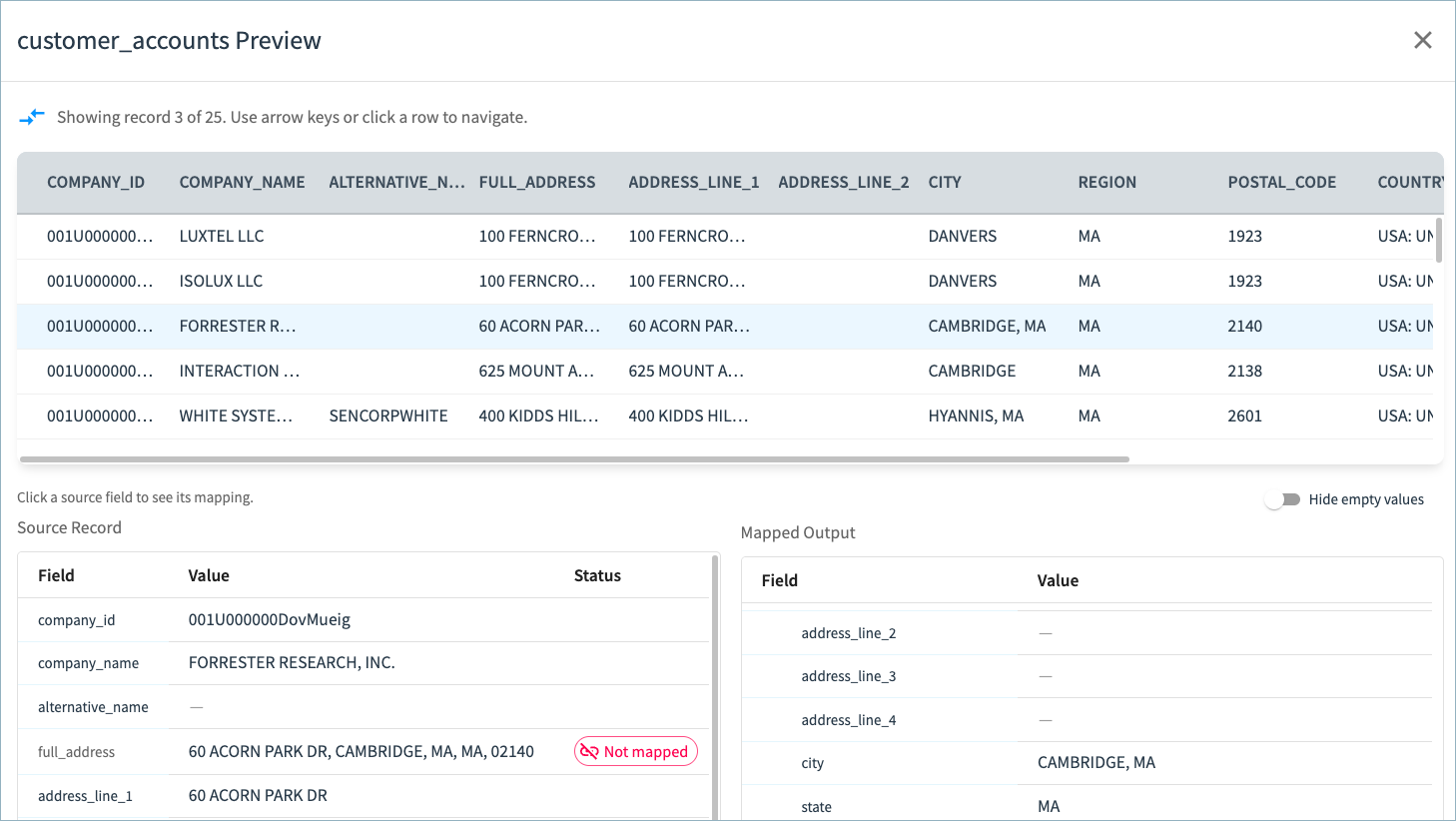
In the Preview window, select a source record to review its values in the mapped unified schema.
-
Select Save Draft when you have completed schema mapping.
-
Repeat these steps to map all of your source datasets to the data product schema.
Tip: If you are mapping multiple datasets, you can use the Comparison Source feature to align schemas by viewing two sources simultaneously.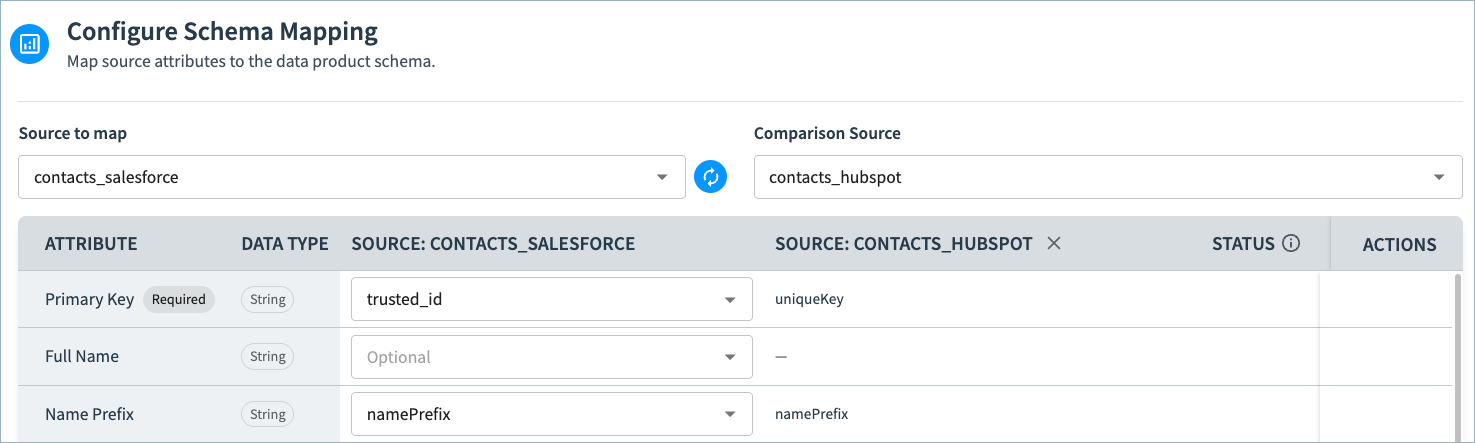
-
Select Save Draft and then navigate back to the data product configuration page.
(Optional) Step 3: Protect Sensitive Data
Your data product might include sensitive information such as birth date, national IDs, email addresses, and so on, that you may not want all users to access. You can choose to hide sensitive data from users with the data product viewer role. See Protecting Sensitive Data in RealTime Data Products.
(Optional) Step 4: Configure Reference Data Standards for Source Data
Reference data standards enable you to clean, standardize, and normalize source record values.
Tamr provides a number of pre-defined reference data standards for use across all data products in your tenant. For example, you can use the Common Null Values standardizer to remove known bad values from your source data, or use the Phone Format standardizer to normalize your source phone numbers to a common format.
The relevant Tamr-managed standards are enabled by default in new data products. Review each of of the standards (Golden Records > Enrichment and Data Quality). You can adjust format options and the attributes to which the standards are applied.
You can also create user-defined reference data standards for use within a project and add them to your data product.
See Using Reference Data Standards for more details on reference data standards, and Adding Standards to a Data Product for instructions on using them in a data product.
(Optional) Step 5: Configure Data Enrichment
The following enrichment options are available:
- Phone and address enrichment is available in all data products.
- Firmographic enrichment is available in B2B Customers data products.
- NPPES Provider Lookup enrichment in available in Healthcare Providers data products.
See Enriching Records for instructions on configuring and applying enrichment to source records and golden records.
Step 6: Deploy Your Draft Configuration
When you have completed the initial draft data product configuration, you deploy the draft to update the configuration with your changes.
Deploying also creates an empty System of Record table for your data product and initializes workflows you can use to populate and update the data in the SOR.
Tip: You may need to refresh your screen after deploying for the Workflows section to populate.
To deploy the draft:
- In the Pending Changes section, select Validate.
Correct reported configuration errors and re-validate if necessary. - Select Apply Draft and Deploy.
- Provide a description for this version of your data product configuration and select Deploy.
Step 7: Run the Onboarding Workflow
The Onboarding workflow loads your initial source records into the System of Record, creating a golden record per source record. This workflow does not apply any match rules or identify duplicate records. After running this workflow, you can run the Review workflow to automatically merge high confidence matches and suggest possible duplicates.
To run the Onboarding workflow:
- Select Set up a data product or add a source.
- Select Run Onboarding Workflow.
Tamr displays a real-time run status and updates with the timestamp of the last successful execution upon completion.
(Optional) Step 8: Run the Enrichment Workflow
If you enabled enrichment, run the Enrich Records workflow to enrich your source records and golden records.
To run the Enrichment workflow:
- In the Workflows section, select Add enrichment data to records.
- Select Run Enrichment Workflow.
Tamr displays a real-time run status and updates with the timestamp of the last successful execution upon completion.
Step 9: Review Your Data
When the workflow completes, you can review your records by:
- Navigating to the 360 pages for this data product from the Browse menu.
- Navigating to the golden records table by selecting Curator Hub > Records.
See Searching for Records in the System of Record for information about navigating to records.
Deduplicate Records in the System of Record
Step 1: Set up Curation Queues
Create curation queues for managing review of suggested duplicates and suggested golden record edits. See Configuring Queues.
(Optional) Step 2: Configure Matching Rules
Matching rules rules deterministically identify records that should or should not be matched together based on matching or non-matching values in specified attributes.
For example, you may want company records to always match if they include the same tax ID.
Important: Mismatch (split) rules are applied only when new records are added, and do not split records from existing record clusters.
See About Matching Rules for more information and instructions.
After adding matching rules, deploy the draft to update the configuration with these changes.
To deploy the draft:
- In the Pending Changes section, select Validate.
Correct reported configuration errors and re-validate if necessary. - Select Apply Draft and Deploy.
- Provide a description for this version of your data product configuration and select Deploy.
Step 3: Configure Duplicate Handling
In the Duplicate Handling page, configure what actions to take when Tamr identifies possible duplicates. The duplicate handling settings apply to every suggested duplicate, whether it comes from a workflow or through the search then create or update record API operation.
When setting up duplicate handling, you can:
- Enable or disable the Auto-Dimiss policy for the data product, which determines how user-suggested duplicates are handled when newer suggestions are made for the same record pair.
- Add one or more suggested duplicate queues in which to route duplicate records.
- Configure the default rule for handling suggested duplicates, including what action Tamr should perform on the suggestion based on the match confidence. Match confidence levels are determined by your search configuration. Default values are very high, high, medium, and low.
- Configure additional rules for handling suggested duplicates for records that match certain criteria. For each rule, determine the queue to which to send duplicate records for curator review.
See Configuring Duplicate Handling for more information and instructions.
After configuring duplicate handling, deploy the draft to update the configuration and enable the Review workflow.
To deploy the draft:
- In the Pending Changes section, select Validate.
Correct reported configuration errors and re-validate if necessary. - Select Apply Draft and Deploy.
- Provide a description for this version of your data product configuration and select Deploy.
Step 4: Run the Review Worklow to Deduplicate the System of Record and Identify Possible Duplicates
Run the Review workflow to iterate through all existing golden records to identify possible duplicate records. High confidence matches are merged automatically, while medium confidence matches are routed to the Suggested Duplicates queue for curators to review.
Note: If the Review workflow is not available on your tenant, contact Tamr Support ([email protected]) to enable it.
To run the Review workflow:
- In the Workflows section, select View All Workflows.
- Run the Review workflow.
Tamr displays a real-time run status and updates with the timestamp of the last successful execution upon completion.
Configuring Uniformity Scores
Uniformity scores (High, Medium, Low) indicate the similarity of clustered source record values to the golden record values, and can help curators identify clusters requiring further review and refinement.
You can choose which attributes contribute to the overall cluster uniformity score, and choose to calculate uniformity for individual attributes.
These scores are available on 360 pages in the Source Records section.
See Configuring Uniformity Scores for instructions.
Fine-Tuning Golden Record Consolidation Rules
Record consolidation rules determine the values selected for golden record attributes. Each record consolidation rule is a set of filters, or conditions, that determine the records in a cluster from which Tamr can select the golden record value. Each data product has a default record consolidation rule for each attribute as well as a final value condition as a tiebreaker.
You can adjust the rule for each attribute to ensure the selected value is appropriate for your downstream users and systems.
Within each rule, you can specify a number of conditions that are applied in order to filter the records.
Each condition can be either:
- Simple Condition, such as most common value of the specified attribute.
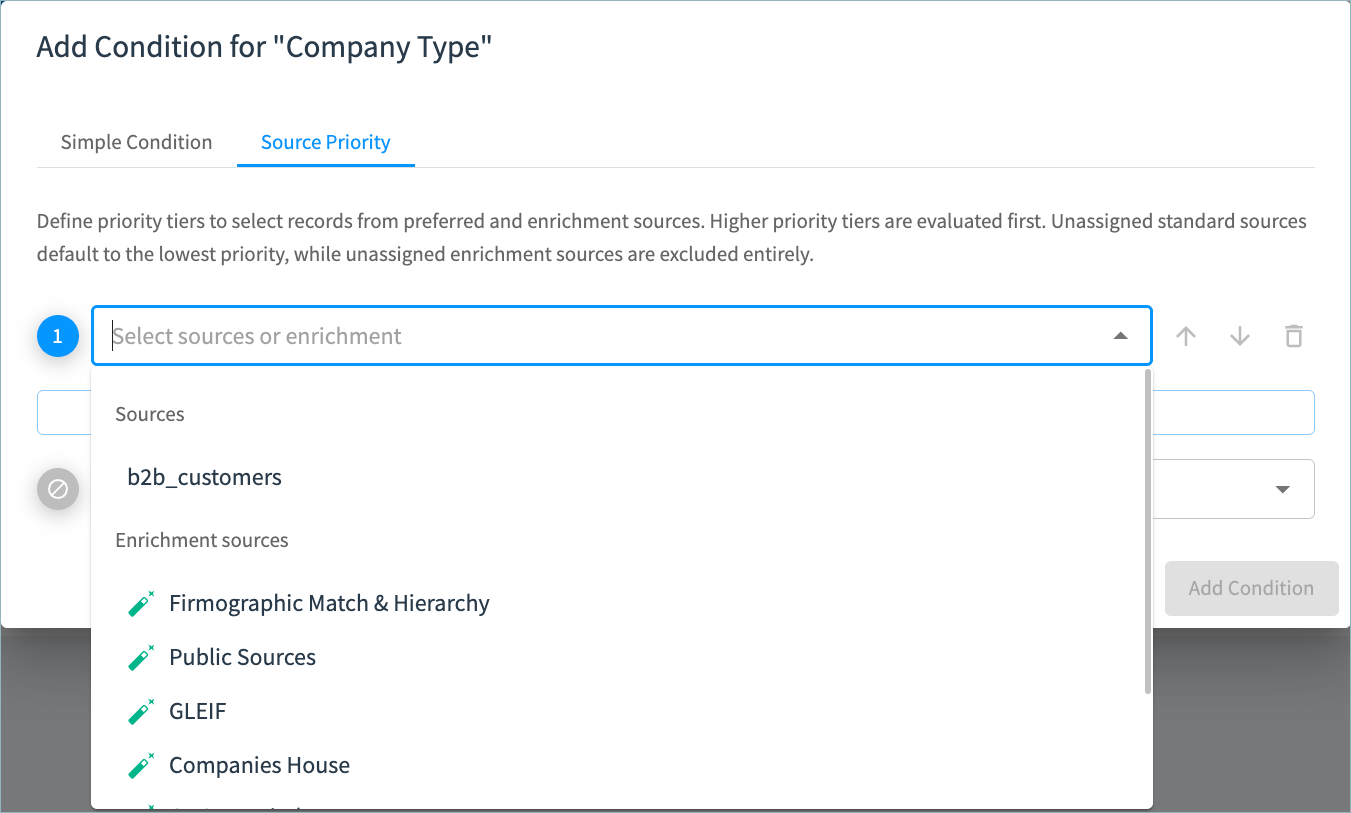
- Source Priority, which allows you to define priority tiers to use records from preferred sources when determining golden record values. The golden record value is chosen from a record in the prioritized source provided it meets the other rule conditions. You can also choose the exclude specific sources from consideration.
If you are using address enrichment, firmographic enrichment, or NPPES Provider Lookup enrichment, you can prioritize values from enrichment sources.
See About Record Consolidation Rules for RealTime Data Products for more full details on these conditions and source priority.
Step 1: Adjust Record Consolidation Rules for Golden Records
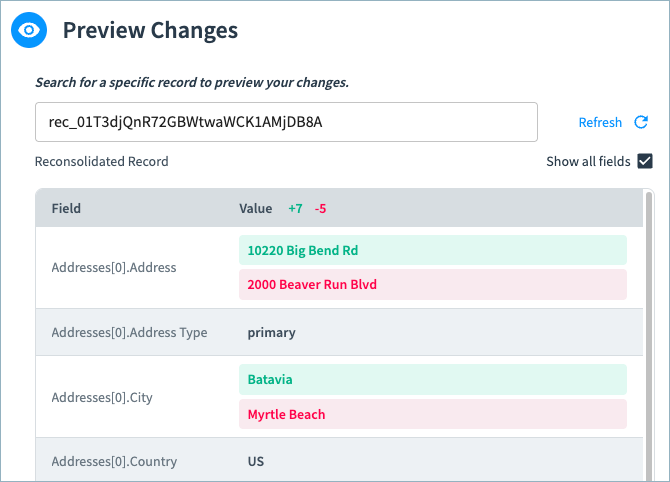
Recommended: If you have already run the Review workflow, you can preview rule changes on a specified record before deploying the changes to all records in your SOR. Identify a record to use for preview and copy the record ID.
To adjust the record consolidation rules:
-
On the Data Products page, select Configure Data Product on the data product card.
-
In the Golden Records card, select Consolidation rules. The Consolidation Rules page opens.
-
Review the current rules for each attribute. You can expand each rule individually to see all rule conditions, or select Expand All.
-
Select Edit for the rule you want to adjust.
-
Select Add Condition to add a new simple condition or specify source priority.
-
Either:
-
Add condition on the Simple Condition tab. Select the Condition Type and related attribute, and configure any other necessary settings.
-
Adjust source priority on the Source Priority tab. On this tab, you can:
-
Exclude one or more sources from being used as golden record values for the attribute.
-
Configure priority tiers to select records from your preferred sources. You can add one or more sources to each tier.
-
If you have configured enrichment for this data product, you can prioritized values returned by enrichment providers for relevant attributes. See Adding and Running Enrichment in a Data Product for complete instructions.
-
-
-
Select Add Rule to add this condition.
-
In the Preview Changes section, enter the record ID of a record to use to preview the updated rules. In the preview, new record values are show in green and the original values are shown in red.
-
Repeat these steps to add additional conditions to the rule. You can drag and drop the rules into the order in which they should be applied.
-
Select Save Draft when you have finished updating the rule.
-
Navigate back to the data product configuration page.
Step 2: Deploy Your Draft Configuration
When you have completed the changes to your record consolidation rules, deploy the draft to update the configuration with these changes.
After deploying the configuration, new and updated golden records are consolidated using the new rules.
To deploy the draft:
- In the Pending Changes section, select Validate.
Correct reported configuration errors and re-validate if necessary. - Select Apply Draft and Deploy.
- Provide a description for this version of your data product configuration and select Deploy.
(Optional) Step 3: Run the Reconsolidate Workflow
The Reconsolidate workflow applies the updated consolidation rules to all golden records in your SOR.
Use this workflow if you want to recalculate all golden records using the updated rules.
To run the Reconsolidate workflow:
- In the Workflows section, select Apply consolidation rule changes.
- Select Run Reconsolidate Workflow.
Tamr displays a real-time run status and updates with the timestamp of the last successful execution upon completion.
Set up Views for Curators and Data Publishing
You can set up different data views for curation and publishing. In each view, choose which data product attributes to include in the view and their order. You can also specify display names for the attributes:
- In Curator Hub, the display name is shown as the attribute name in the golden records table.
- When publishing data, the display name is used as the attribute name in the published results.
See Configuring Views for Curation and Publishing for more information.
Updated 5 days ago