
Configuring Queues
Tamr Assistance NeededContact your Tamr account team or Tamr Support ([email protected]) for additional configuration assistance to ensure that possible matches identified by RealTime operations are routed to the correct queue.
Curation queues are used to organize and manage lists of items for curators to review, including suggested duplicate records and suggested edits to record values.
You create and manage queues from the Queues menu option. When adding a queue, you can specify whether the queue is used for managing suggested duplicates or suggested edits, and associate the queue with a data product.
Note: If you are using a RealTime data product, you can also add new queues from the Duplicate Handling page in data product configuration.
On the Queues page, you can see all queues in the project along with their data product association, status, the date and time at which the queue was created, and the date and time at which it's settings were last update.
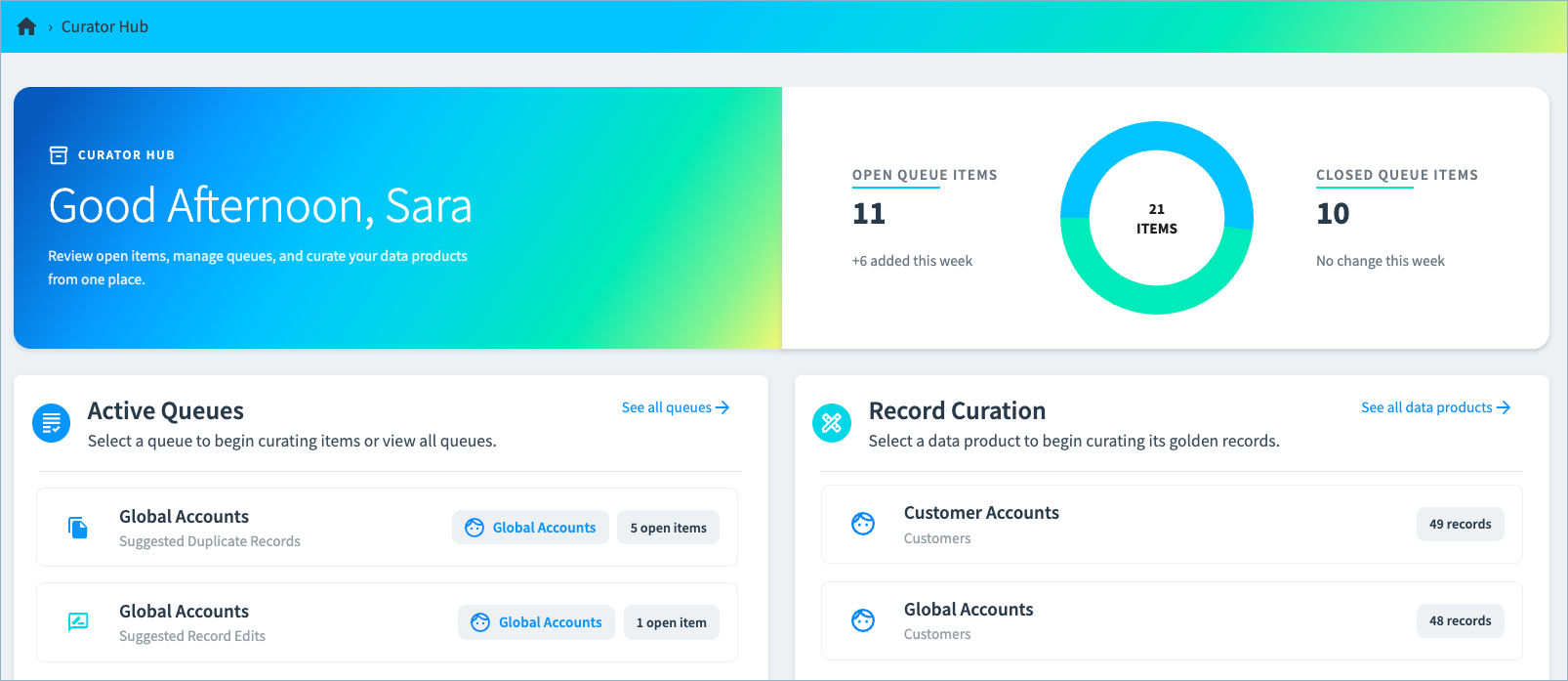
Depending on their data product roles and queue roles, users can access the queues in Curator Hub to review and act on the suggested changes.
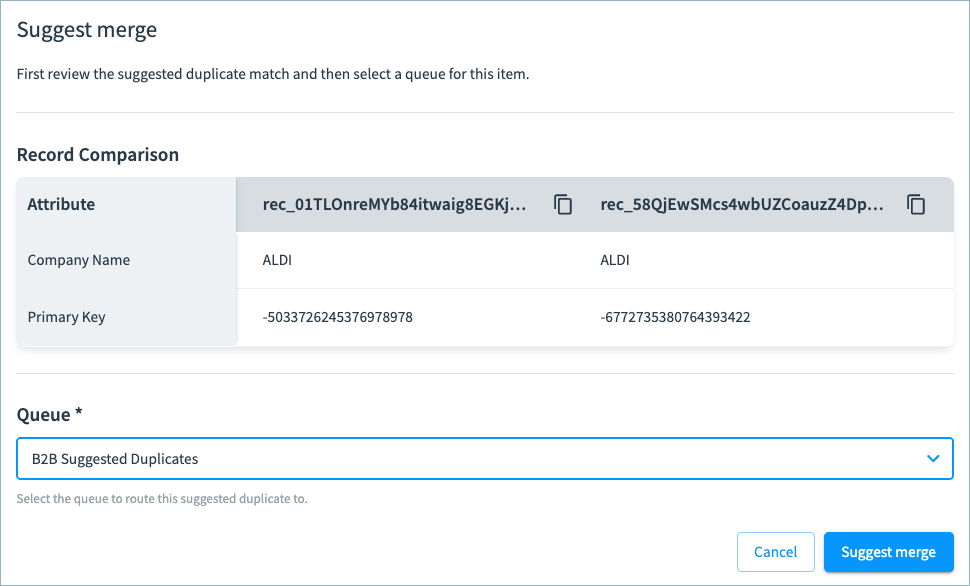
Additionally, users are prompted to select the appropriate queue when suggesting record merges or edits from the 360 page.
Adding a Queue
To add a new queue:
-
Navigate to Queues and select New Queue.
-
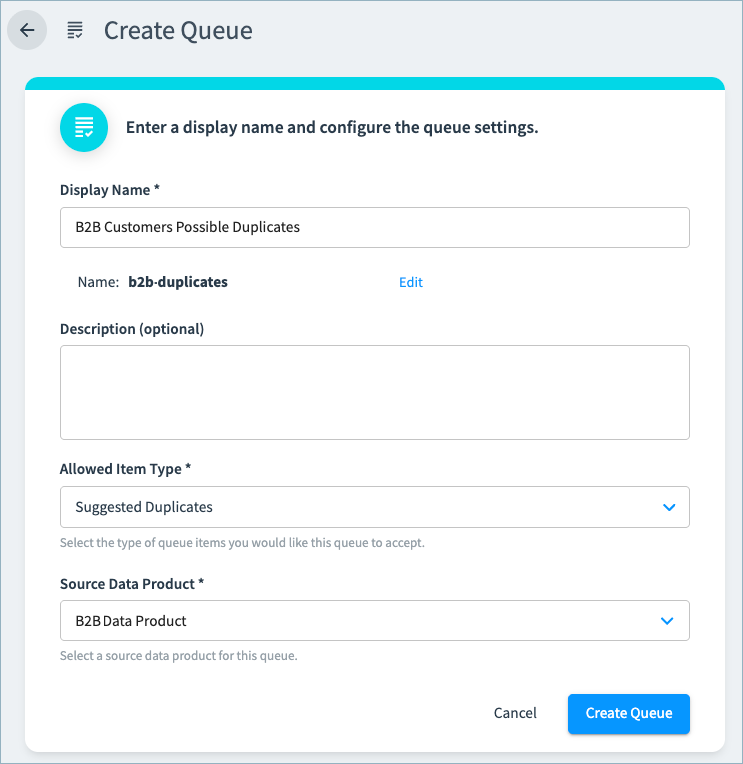
Enter a display name for the queue. This value is used to automatically generate a name slug, which must be unique and between 6 and 30 characters. You can edit the name slug if needed to adjust the number of characters.
-
Optionally, add a description to help other users understand what items will be added to this queue.
-
From the Allowed Item Type dropdown, select the type of items that will be added to this queue - either Suggested Duplicates or Suggested Edits.
-
Select the Source Data Product to associated with this queue. Only items associated with this data product can be added to this queue by reviewers.
-
Select Create Queue.
The queue is now available in Curator Hub, and users can select this queue when suggesting changes.
Editing Queue Settings
You can edit the display name and description for a queue, but cannot adjust the name slug, allowed item type, or associated data product.
To edit a queue:
- Navigate to Queues and select the Edit icon for the queue.
- Adjust the display name and description as needed.
- Select Update Queue.
Pausing a Queue
To make a queue temporarily unavailable, you can pause new items from entering the queue. Tamr will not add suspect duplicates programmatically to this queue and users cannot select it when suggesting changes from the 360 page.
To pause a queue:
- Navigate to Queues and select the Pause icon for the queue.
- When you are ready to re-enable the queue, select the Resume (play) icon.
Archiving a Queue
If your organization will no longer use a queue, you can archive it to remove it from the Queues page. Tamr will not add suspect duplicates programmatically to this queue and users cannot select it when suggesting changes from the 360 page.
To archive a queue:
- Navigate to Queues and select the Archive icon for the queue.
If you need to un-archive the queue, you can use the reopen queue API operation to set the queue state to Active.
Updated 1 day ago