
Curating RealTime Data Product Results
Limited ReleaseRealTime data products are in limited release. Some functionality is still in development and is subject to change. If you are interested in using these data products, contact Tamr Support ([email protected]).
Perform ongoing record curation in Curator Hub.
In addition to reviewing and taking action on items in curation queues, as explained in Curating Records in the System of Record, for RealTime data products you can also curate golden records and their source record associations from the Records table in Curator Hub.
Reviewing Curation Queues
See Curating Records in the System of Record for instructions on reviewing and managing suggested duplicate and suggested edit queues in Curator Hub.
Reviewing and Curating from the Records Table
You can review and curate data product records in Curator Hub from the records table.
Accessing the Records Table
To open the records table for a data product, select the data product tile in Curator Hub and then select the Records tab.
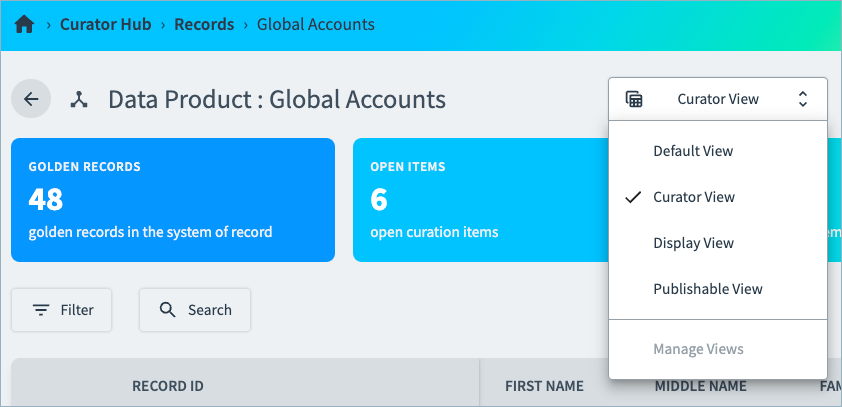
If you configured views, you can select a view for the records table to change the fields displayed in the table. Choose the view in the top right corner.
Reviewing Records
The records table includes all golden records for this data product. You can also search for specific record IDs.
Editing Record Values
If you identify incorrect field values when reviewing records in the table, you can edit these values by selecting the Edit icon. See Editing Record Attribute Values.
Curating Golden Records and Source Records
From the records table, you can select one or more golden records to open them in a record curation view. In record curation, you can:
- Merge selected golden records.
- Move source records between golden records.
- Move source records to a new golden record.
Tip: You can also open the record curation view for suggested duplicated records by selecting the Curate in Record Curation option on the 360 page or on an item in the suggested duplicates queue.
To curate records:
-
In the records table, select one or more golden records to curate and select Curate Selected.

The Record Curation page opens.
Tip: Choose a view in the top right to adjust the columns shown on the page.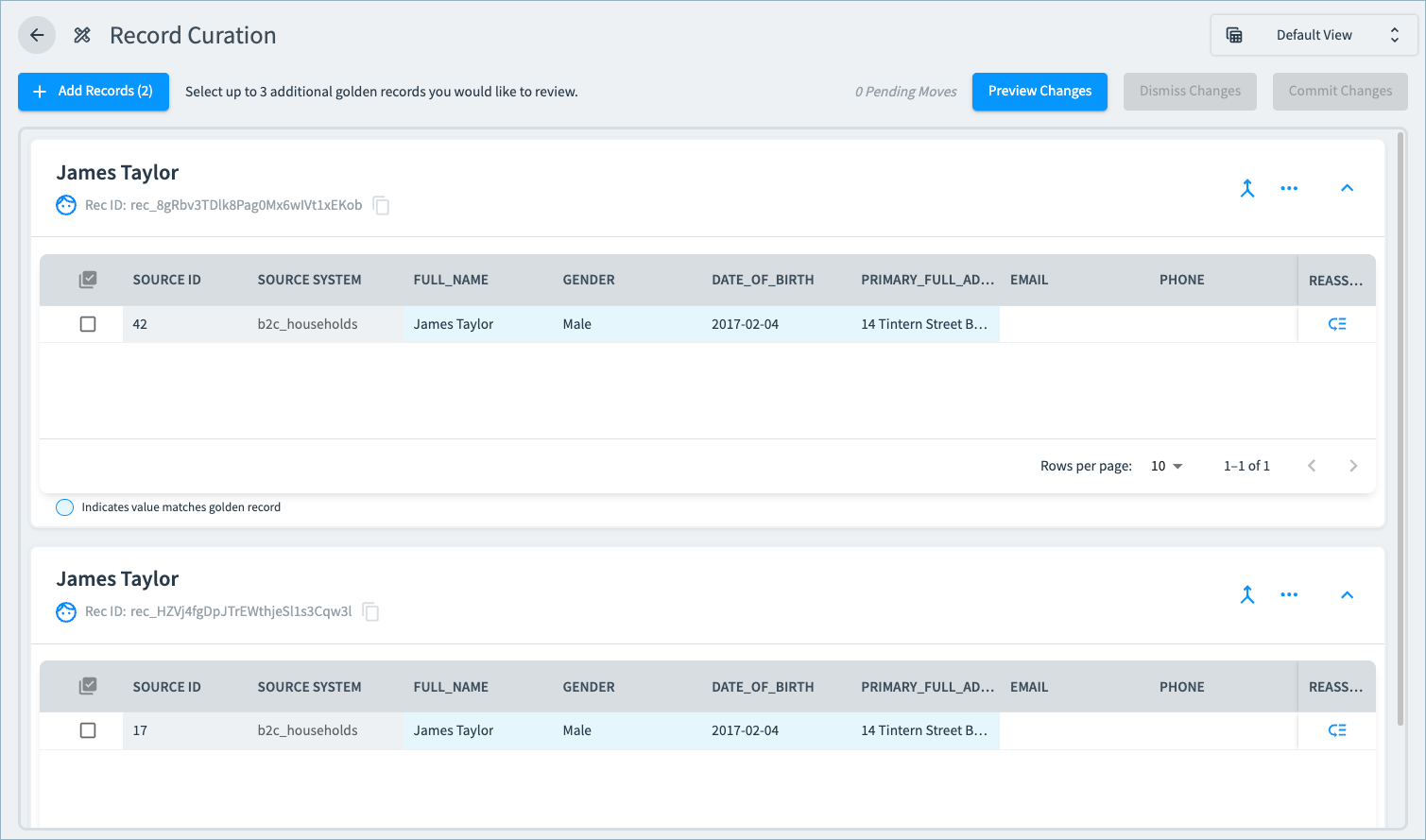
-
If necessary, you can add additional records for review by selecting Add Records and choosing other records to include (up to 5 in total).
-
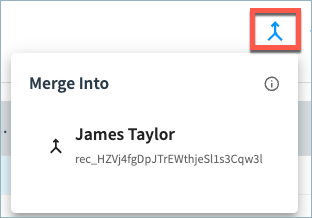
To merge golden records, select the Merge icon and choose which of the other records to merge this record into.
This change is staged until you choose to Commit Changes. Once committed, all source records associated with this record will merge into the selected record, and the merged golden record will be retired.
-
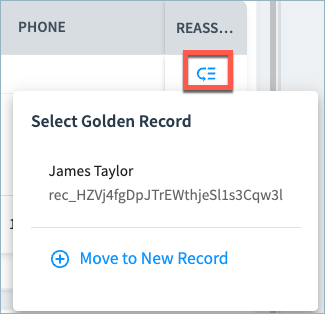
To move source records between golden records, or to create a new golden record from a source record, select the record and then choose the Reassign Record icon. Either select the golden record to assign this source record to, or move the record to a new golden record.
This change is staged until you choose to Commit Changes. Once committed, the source record will be associated with the selected or new golden record.
-
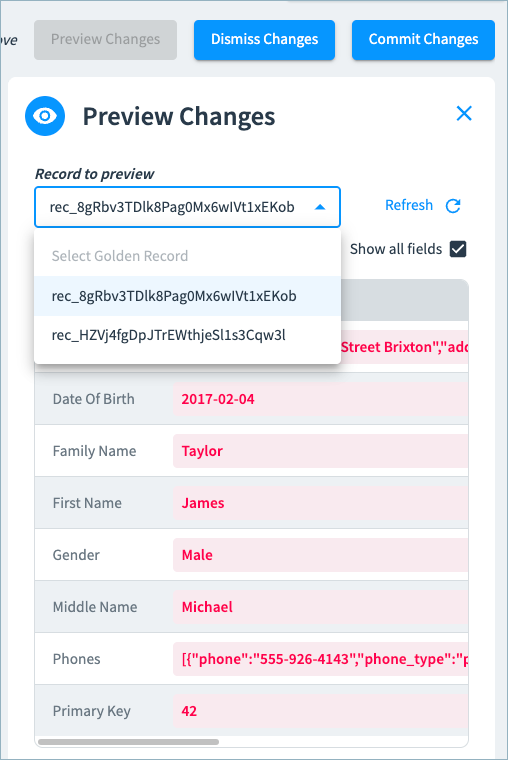
At any point, you can preview the staged changes. Select Preview Changes to review the changes that will be made to your records.
-
To revert staged changes and not apply them, select Dismiss Changes.
-
To apply the staged changes, select Commit Changes. The changes are immediately applied to the records.
Updated about 2 months ago