
Managing User-Defined Reference Data Standards
Limited ReleaseRealTime data products are in limited release. Some functionality is still in development and is subject to change. If you are interested in using these data products, contact Tamr Support ([email protected]).
You can create custom reference data standards specific to your data. For example:
- If you use common placeholder values for an unknown street address, phone number, or email that are not included in the Common Null Values reference data standard, you can create a new standard to set those values to
null. - If you use custom abbreviations for departments within a company, you can create a new standard to replace those abbreviations with the complete department name (canonical value).
When Tamr identifies a source value that matches a value specified in the standard, Tamr replaces the value with null or the specified canonical value, depending on the configuration.
Matching is case-insensitive and whitespace-sensitive. Tamr supports both exact and wildcard match. With both exact and wildcard match, Tamr replaces the entire field value when a match is found.
You can add a new standard by individually entering the source values and their associated canonical values, or by bulk uploading a source dataset that contains the source values, their canonical values, and the match type.
Important: Each source value can map to only one canonical value.
About Standard Versioning
When you make any changes to an existing user-defined standard, Tamr publishes the updated configuration as a new version. This allows you to publish a new version without changing any existing data product results. You can then choose to update a data product to the newer standard version in the data product configuration page.
Individual Entries: Adding a Standard
To add the user-defined standard:
- Navigate to Reference Data.
- Select Add Standard.
- Choose the Lookup Table option.
- Provide a display name and optional description to help other users understand when to include this standard in a data product. Select Create Lookup Table.
- Select Add Entry
- In the Source value field, enter the value in your source records that you want to set to
nullor replace with a canonical value.
Important: If the source value includes a backslash (\), you must escape it with an additional backslash. For example, to match the value\n, enter\\n. You can also escape characters that Tamr recognizes as wildcards (_and%) using two backslashes (for example,\\%).
You can use the following wildcards when specifying source values:- A percent sign (
%) matches any number of characters. For example,%test%matchestests,testdataandsometestdata. - An underscore (
_) matches a single character. For example,test_matchestestsbut nottestdata.
- A percent sign (
- In the Canonical value field, enter the standard value you want to use as the replacement. If you want to replace the source value with
null, leave this field blank. - Select the Match type: Exact or Wildcard.
- Exact match: The source value must be an exact (case-insensitive, whitespace-sensitive) match for Tamr to replace the value with the canonical value.
- Wildcard match: Select this option if you the source value you entered includes wildcards.
- Add additional entries as needed.
- Select Publish Draft to make this standard available for use in a data product.
Bulk Upload: Adding a Standard
Step 1: Add a Data Source with the Source and Canonical Values
Create a dataset with the columns below, and add the dataset to Tamr, following the instructions for Adding Source Data.
| Column | Details |
|---|---|
| Source value | Source value that you want to set to null or replace with a canonical value.You can use the following wildcards when specifying source values:
\), you must escape it with an additional backslash. For example, to match the value \n, enter \\n. You can also escape characters that Tamr recognizes as wildcards ( _ and % ) using two backslashes (for example, \\%). |
| Canonical value | Provide the value with which to replace the source value. To replace the source value with null, either omit this column from your data source, or leave this column blank. |
| Match type | Optional.
|
Example file:
| sourceValue | canonicalValue | matchType |
|---|---|---|
| Accounts Payable | Finance | exact |
| Acct | Finance | exact |
| Act | Finance | exact |
| Billing | Finance | exact |
| Finance% | Finance | wildcard |
Step 2: Add a User-Defined Standard
To add the user-defined reference data standard:
-
Navigate to Reference Data.
-
Select Add Standard.
-
Choose the Lookup Table option.
-
Provide a display name and optional description to help other users understand when to include this standard in a data product. Select Create Lookup Table.
-
Select Bulk Upload.
-
Enter a display name and optional description to help other users understand when to include this standard in a data product.
-
Select the source that includes the source to canonical value mappings.
-
Select the columns in the source dataset that map to the source value, canonical value, and (optional) match type.
Note: You do not need to map a column to canonical value if all matching source values in this dataset should be set tonull.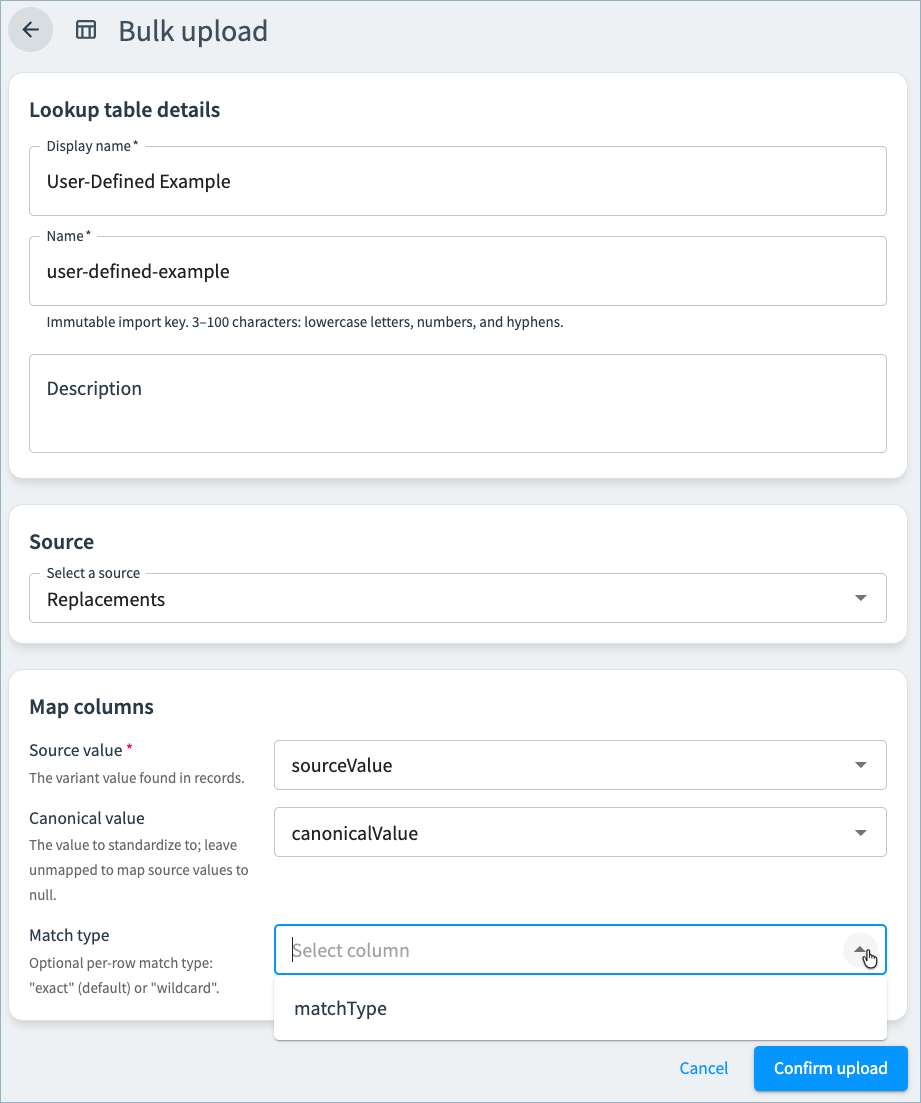
-
Select Confirm Upload. Tamr processes the file and publishes the standard.
Updating a User-Defined Standard Version
You can add or update standard entries individually, or upload a source with the new source value/canonical value mappings. (See the instructions in the section above for creating and adding a source dataset.)
When you make any changes to an existing standard, Tamr publishes the updated standard as a new version. This allows you to publish a new version without changing any existing data product results. You can choose when to update a data product to the newer version.
To update a user-defined standard:
- Navigate to Reference Data.
- Select the user-defined standard you want to update.
- Select New Version, and then choose to Edit Manually or Upload from a Source.
- If you are editing manually:
- Provide a name for this standard version, such as "v2", and optional description.
- Choose which previous version to use as the basis for the new version.
- Select Create Draft.
- Select Add Entry to add additional source/canonical value mappings.
- Select the Edit icon for an existing to change the source value, canonical value, and/or match type.
- Select Publish Version when your changes are complete.
- If you are uploading from a source:
- Provide a name for this standard version, such as v2, and optional description.
- Choose which previous version to use as the basis for the new version.
- Select the source.
- Map source columns to the source value, canonical value, and match type.
- By default, the mappings in the source dataset are added as new entries and the existing entries remain in place. If you want to overwrite all existing entries, select the Overwrite existing entries option.
- Select Import. Tamr processes the file and publishes the new standard version.
Updated 3 months ago