
Configuring Matching Rules
Matching rules rules deterministically identify records that should or should not be matched together based on matching or non-matching values in specified attributes. These rules are prioritized over Tamr's default match model.
For example, you might want records with the same Personal Identifier value to be matched into the same cluster, as shown below, regardless of other attribute values in the records.
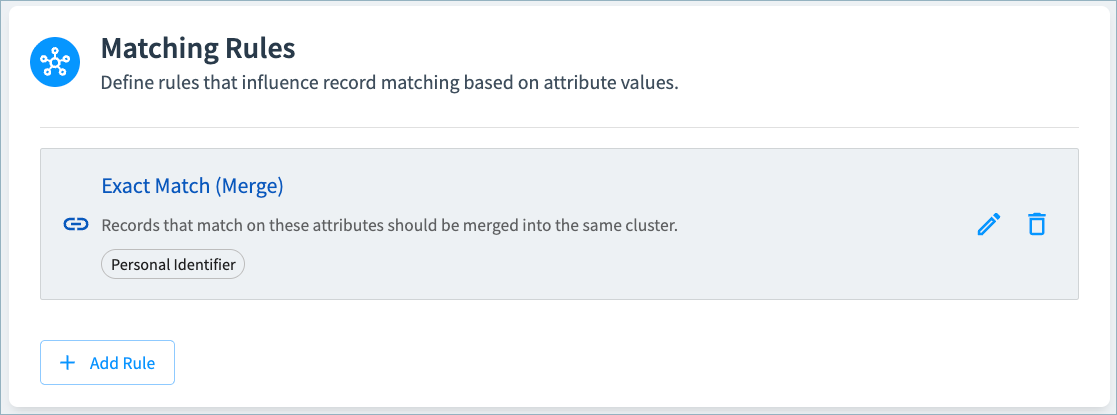
When matching records are identified by a rule, the RULE_MATCH match label is included in the match explainability details.
Types of Rules
You can create the following types of rules:
- Exact Match (Merge): If records have matching non-null values for the selected attributes, they will be clustered together. If you select more than one attribute for this rule, the values of both attributes must match in order for Tamr to apply the rule.
- Mismatch (Split): If records have different non-null values for the selected attributes, they will not be clustered together. If you select more than one attribute for this rule, the values of both attributes must be different in order for Tamr to apply the rule.
- Both: Apply both exact match and mismatch rules to ensure that all records in a cluster have the same or null value for the selected attributes.
Important: Mismatch (split) rules are applied only when new records are added, and do not split records from existing record clusters.
Rule Priority
If you add multiple rules, the rules higher in the list take precedence over the rules lower in the list.
You can adjust rule order by dragging and dropping the rules into the appropriate order, or by using the up and down arrows on the rule to move it in the list.
Example
A B2B Companies data product includes a rule to always cluster together records with the same Tax Ids value. It also applies a lower priority rule that prevents companies with different Stock Exchange values from being clustered together.
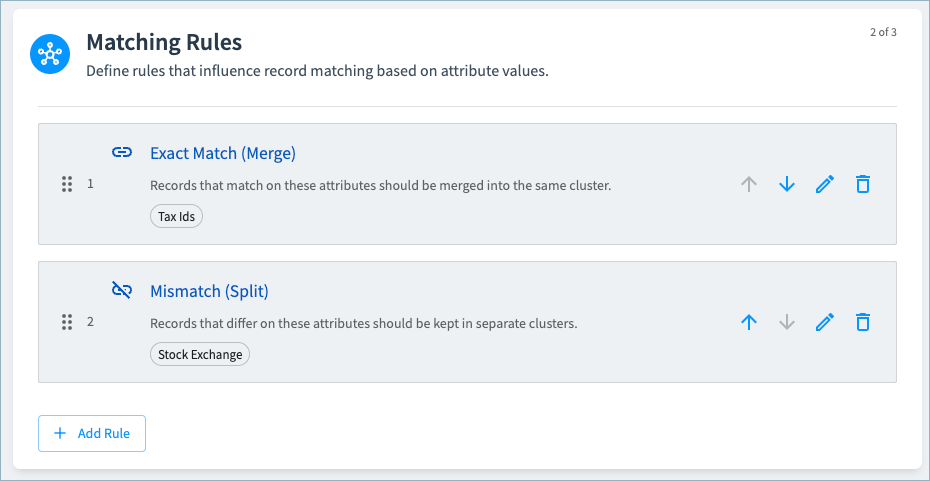
Tamr applies these rules to clusters identified by the match model as follows:
- First, Tamr splits any records with different, non-null middle
Stock Exchangevalues into different clusters. - Then, Tamr matches any clusters where records have the same
Tax IDsvalue.
This means that a record with a different Stock Exchange value but the same Tax IDs value will end up being clustered together, because the rule to match clusters with the same Tax IDs has highest priority.
Configuring Matching Rules
If your data product includes multiple search configurations, you can create different matching rules for each configuration.
To configure matching rules:
- On the Data Products page, select Configure Data Product on the data product card.
- In the Match Model Tuning card, select Matching rules.
- Choose Add Rule.
- Select the Rule Type (Exact Match, Mismatch, or Both) and one or more attributes for this rule.
- Select Add Rule.
- Add more rules as needed.
- Adjust rule order as needed, using drag and drop or the arrows on each rule.
- Select Save Draft and return to the main configuration page.
- In Pending Changes, Validate your configuration changes and then select Apply Draft and Deploy.
- The matching rules will be applied on new and updated records the next time you run the Resolve workflow.
If the Review workflow has been enabled for your tenant, you can run the Review workflow to apply Exact Match rules to any previously created clusters.
Important: Mismatch (split) rules are applied only when new records are added, and do not split records from existing record clusters.
Updated 17 days ago