
Ongoing Tasks for RealTime Data Products
Limited ReleaseRealTime data products are in limited release. Some functionality is still in development and is subject to change. If you are interested in using these data products, contact Tamr Support ([email protected]).
This topic provides instructions for performing ongoing updates and maintenance for:
- RealTime B2B Customers Data Product
- RealTime B2C Customers Data Product
- RealTime Contacts Data Product
- RealTime Healthcare Providers Data Product
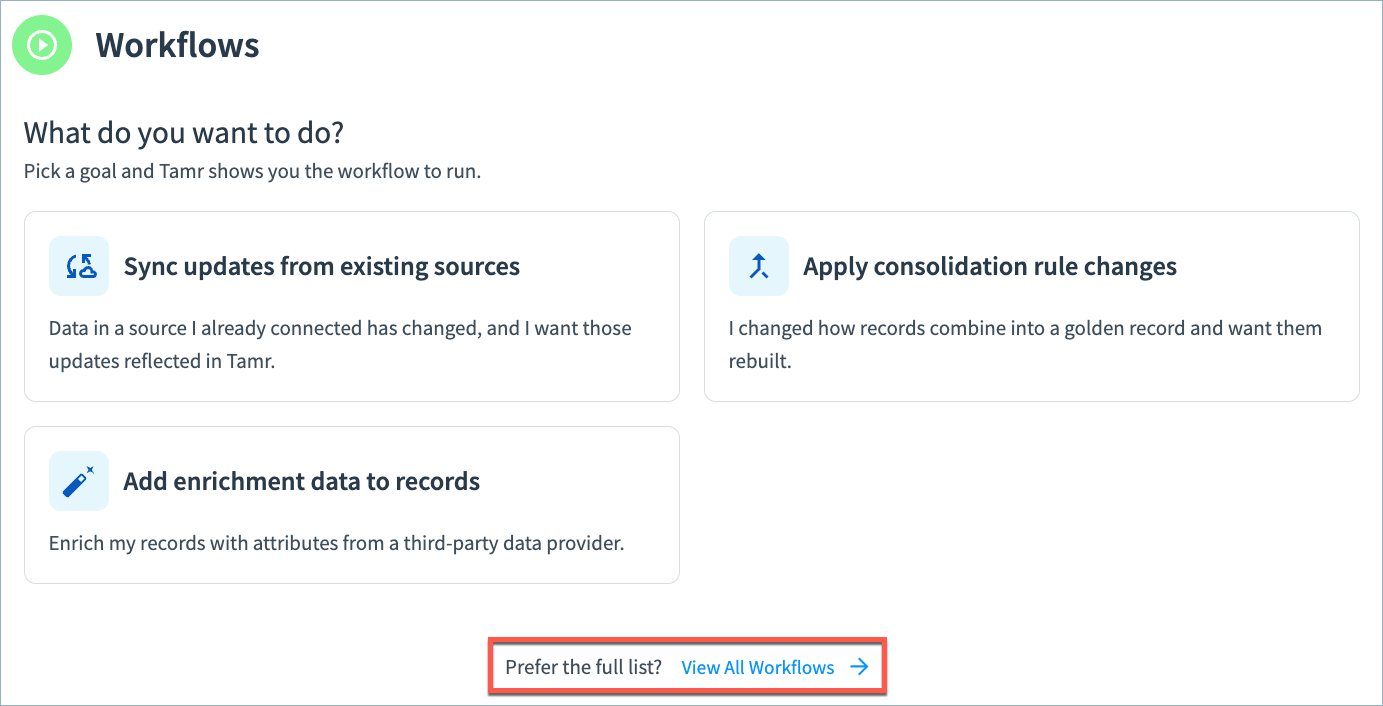
When running the workflows described in this topic, you can run them using the guided experience or from the full workflow list. Tamr suggests the most relevant workflow depending on the data product configuration status. You can select View All Workflows to access the full list.
Managing Permissions
See Managing Permissions for RealTime Data Products for instructions on assigning data product roles.
Onboarding New Sources
Onboard a new source in the data product Configuration page.
- Add the source to Tamr. See Adding Source Data.
- On the Data Products page, select Configure Data Product on the data product card.
- In Sources and Schema Mapping, add the source and map its attributes. Add new custom attributes if needed.
- In Golden Records, update record consolidation rules if needed. For example, you may want to add the new source to source priority tiers.
- In Pending Changes, Validate your configuration changes and then select Apply Draft and Deploy.
- Once your configuration changes are deployed, run the Onboarding workflow to load all records from the new source into the System of Record, creating a golden record per source record. This workflow does not apply any match rules or identify duplicate records.
- Optionally, if you have configured enrichment in the data product, run the Enrichment workflow to enrich new source records and golden records. This worflow automatically reconsolidates golden records to apply any updated golden record consodlaition rules.
- Optionally, run the Review workflow to iterate through your golden records to identify possible duplicate records. High confidence matches are merged automatically, while medium confidence matches are routed to the Suggested Duplicates queue for curators to review.
Note: If the Review workflow is not available on your tenant, contact Tamr Support ([email protected]) to enable it.
Processing Incremental Record Updates
To process incremental changes in your source datasets (new and updated records):
- Refresh the source in Tamr. See Managing Sources.
- Run the Resolve workflow to match new and updated records to your existing clusters and create new clusters and golden records as needed.
- Optionally, run the Review workflow to iterate through your golden records to identify possible duplicate records. High confidence matches are merged automatically, while medium confidence matches are routed to the Suggested Duplicates queue for curators to review.
Note: If the Review workflow is not available on your tenant, contact Tamr Support ([email protected]) to enable it.
Tip: You can also create and update individual records using the Records API or Search API See tamr.api.v1alpha1.Records and search then create or update record for details on using the API.
Adjusting Data Product Schema
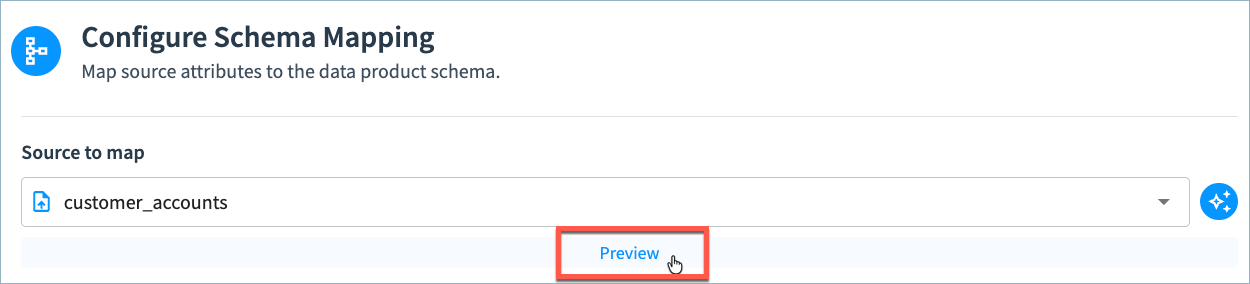
If needed, you can adjust attributes mappings and add or remove custom attributes in your data product schema.
Tip: Select the Preview option to review attribute mappings before saving your changes.
After making and deploying the changes run workflows as follows:
- If you want to update the golden records to reflect the changed schema without affecting clustering membership run only the Reconsolidate Records workflow.
- If you want to update record clustering based on the new/removed attributes without updating all golden records, run the Resolve Source Record Changes with the System of Record workflow. In this case, only new golden records and golden records with updated clusters are updated to reflect the changed schema.
- If you want to both update clustering and update all golden records to reflect the updated schema, first run the Resolve Source Record Changes with the System of Record workflow to update clustering. Then, run the Reconsolidate Records workflow to update all golden records.
Important: While you can adjust mappings, do not change a source's schema between incremental Resolve workflow runs. If you need to change the schema, create a new source with the updated schema and add it as a source to the data product.
Adjusting Golden Record Consolidation Rules
If needed, you can adjust record consolidation rules in the data product Configuration page. See About Record Consolidation Rules for RealTime Data Products.
After making and deploying the changes, all new and updated golden records will be consolidated using the updated rules.
Optionally, you can run the Reconsolidate Records workflow to recalculate all of your golden records using the new rules.
- On the Data Products page, select Configure Data Product on the data product card.
- In Golden Records > Consolidation rules, update record consolidation rules as needed
- In Pending Changes, Validate your configuration changes and then select Apply Draft and Deploy. New and change records will now be consolidated using the updated rules.
- Optional: Run the Reconsolidate workflow to update all of your existing golden records with changes from the new sources and/or adjusted rules.
Adjusting Uniformity Score Calculations
Uniformity scores (High, Medium, Low) indicate the similarity of clustered source record values to the golden record values, and can help curators identify clusters requiring further review and refinement.
You can choose which attributes contribute to the overall cluster uniformity score, and choose to calculate uniformity for individual attributes.
These scores are available on 360 pages in the Source Records section.
See Configuring Uniformity Scores for instructions.
Adjusting Matching Rules
If needed, you can adjust matching rules to tune record match results. Matching rules rules deterministically identify records that should or should not be matched together based on matching or non-matching values in specified attributes. These rules are prioritized over Tamr's default match model.
See Configuring Matching Rules for instructions.
Updated matching rules are be applied on new and updated records the next time you run the Resolve workflow.
You can run the Review workflow to apply the matching rules to any previously created clusters.
Note: If the Review workflow is not available on your tenant, contact Tamr Support ([email protected]) to enable it.
Adjusting Reference Data Standards
Reference data standards enable you to clean, standardize, and normalize source record values.
Tamr provides a number of pre-defined reference data standards for use across all data products in your tenant. For example, you can use the Common Null Values standardizer to remove known bad values from your source data, or use the Phone Format standardizer to normalize your source phone numbers to a common format.
You can also create user-defined reference data standards for use within a project.
You can choose which standards to apply in the data product, and the attributes to which to apply each standard.
See Using Reference Data Standards for more details on reference data standards, and Adding and Adjusting Standards in a Data Product for instructions on using them in a data product.
Adjusting Data Enrichment
See Enriching Records for instructions on configuring and applying address, phone, firmographic, and NPPES Provider Lookup enrichment.
Adjusting Duplicate Handling
See Configuring Duplicate Handling for instructions on configuring what actions to take when Tamr identifies possible duplicates.
Creating and Adjusting Data Views
You can create and update data views for curation and publishing. In each view, choose which data product attributes to include as well as their display names and order. See Adding and Configuring a RealTime Data Product for instructions on creating views.
Publishing Results
You can publish records from your System of Record for use in downstream systems. See Publishing from the Tamr RealTime Datastore for instructions.
For RealTime data products, you can also choose a view when configuring a publish destination:
- Leave the view set to None to publish all fields in a
dataJSON blob. - Select the view that contains the attributes you want to publish. This flattens the published table and sets the attribute names to the display name values defined in the view.
Selecting a view is required for publishing the Source-Linked RealTime Records dataset.
Curating Data
Perform ongoing record curation in Curator Hub. See Curating RealTime Data Product Results.
Tip: If you configured views, you can select a view for the golden records table in Curator Hub. Navigate to this table in Curator Hub by selecting the data product card and then the Records tab. Choose the view in the top right corner.
Scheduling Workflows
You can schedule RealTime data product workflows to run at specified intervals through the Jobs API (tamr.api.v1beta1.Jobs) and the Admin Center Schedules page (Managing and Viewing Scheduled Jobs).
Monitoring Activity via Webhooks
You can configure webhooks to monitor platform and record events, including record events for RealTime data products. See Configuring Webhooks.
Updated 6 days ago