
Viewing 360 Pages for RealTime Data Products
View the latest data for the data products to which you have access.
Accessing 360 Views
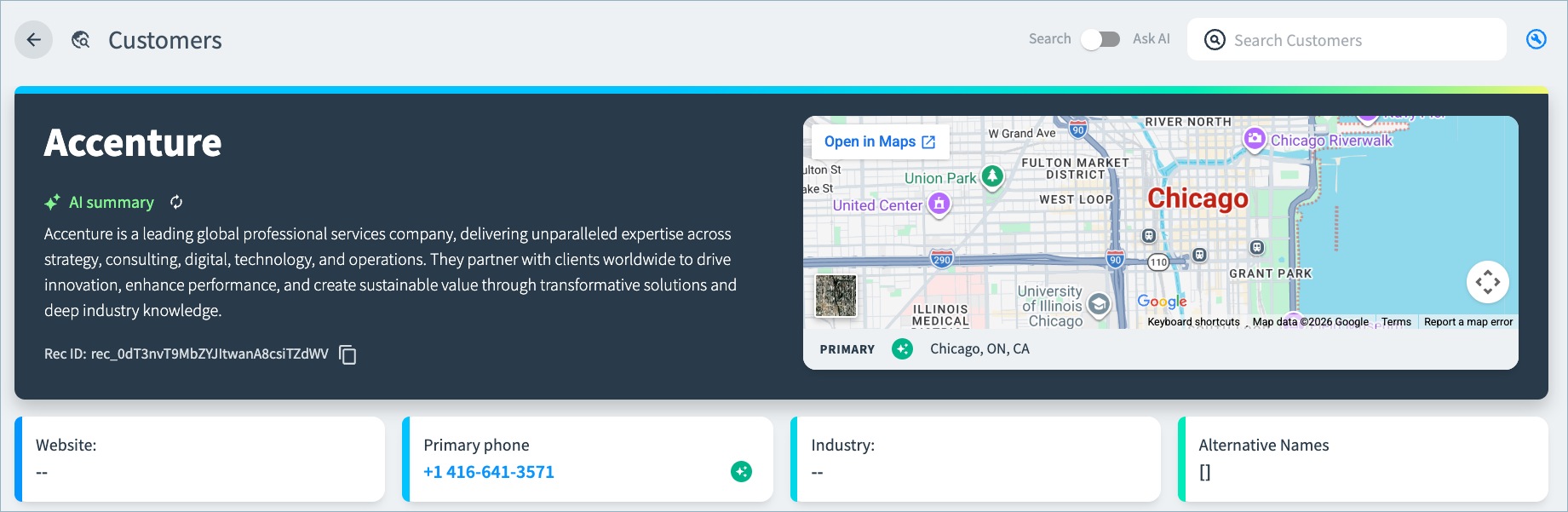
360 views are data-rich, wiki-style pages for your golden records that enable business users to easily explore the the data powering their most important analytics and system. They include all golden record attributes, as well as data provided by external enrichment, maps, and source details.
Access 360 pages for your data products from the Browse option in the left navigation menu. Select your data product to browse or search for a record. You can search using a fuzzy or exact match on attribute values.
The attributes shown in 360 views depend on the data product schema. Below is a sample company 360 view.
Reviewing Source Data in 360 Views
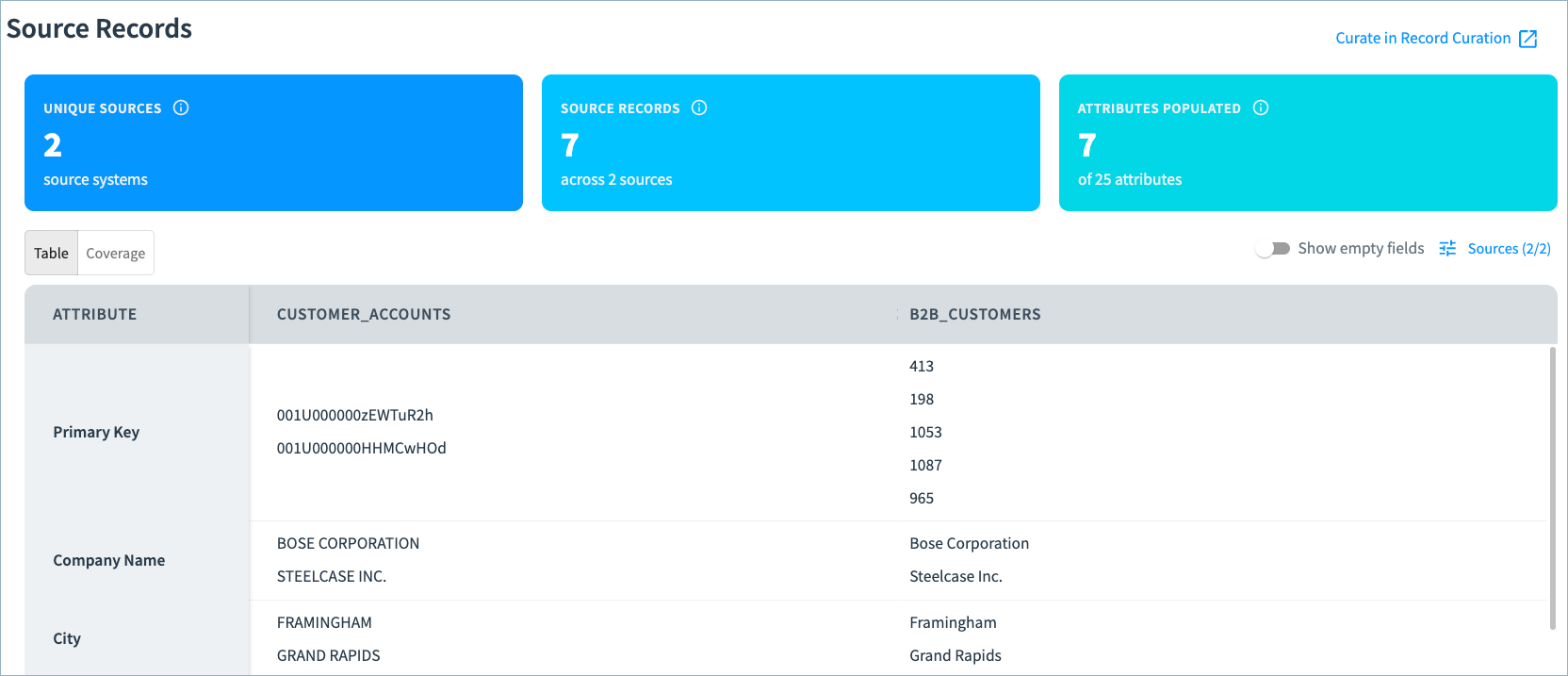
The 360 view includes details for the source records in the cluster, including the number of source datasets and source records in the cluster and the number of populated attributes in the source records. You can filter the records by data source.
To compare the source records in more detail, and potentially assign them to different clusters, select the Curate in Record Curation option.
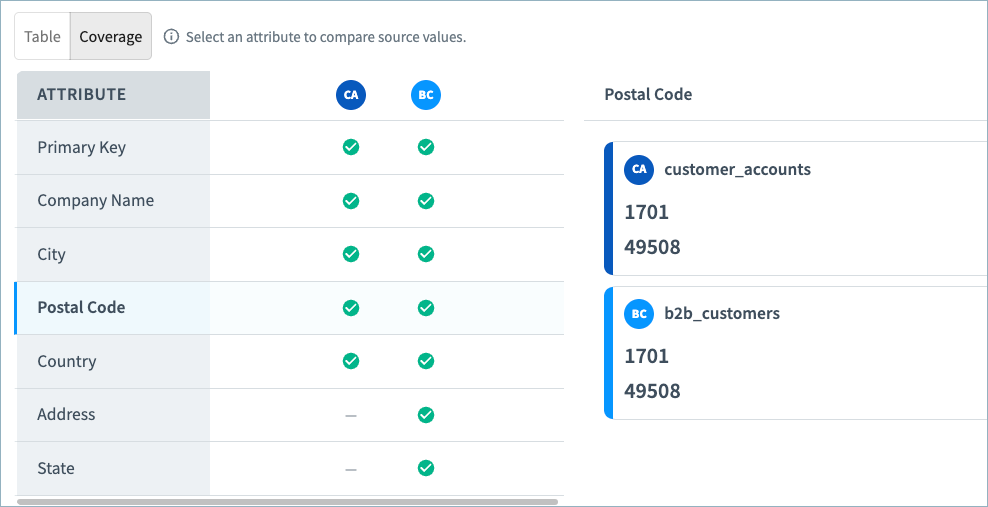
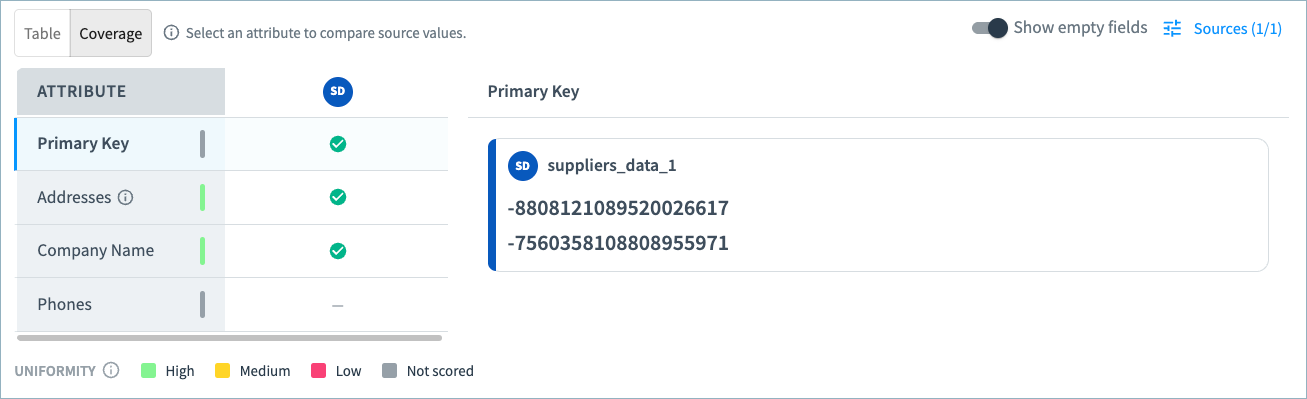
In the Coverage tab, gain insight into the completeness of your source record data and easily compare attribute values by source.
Viewing Uniformity Scores on 360 Pages
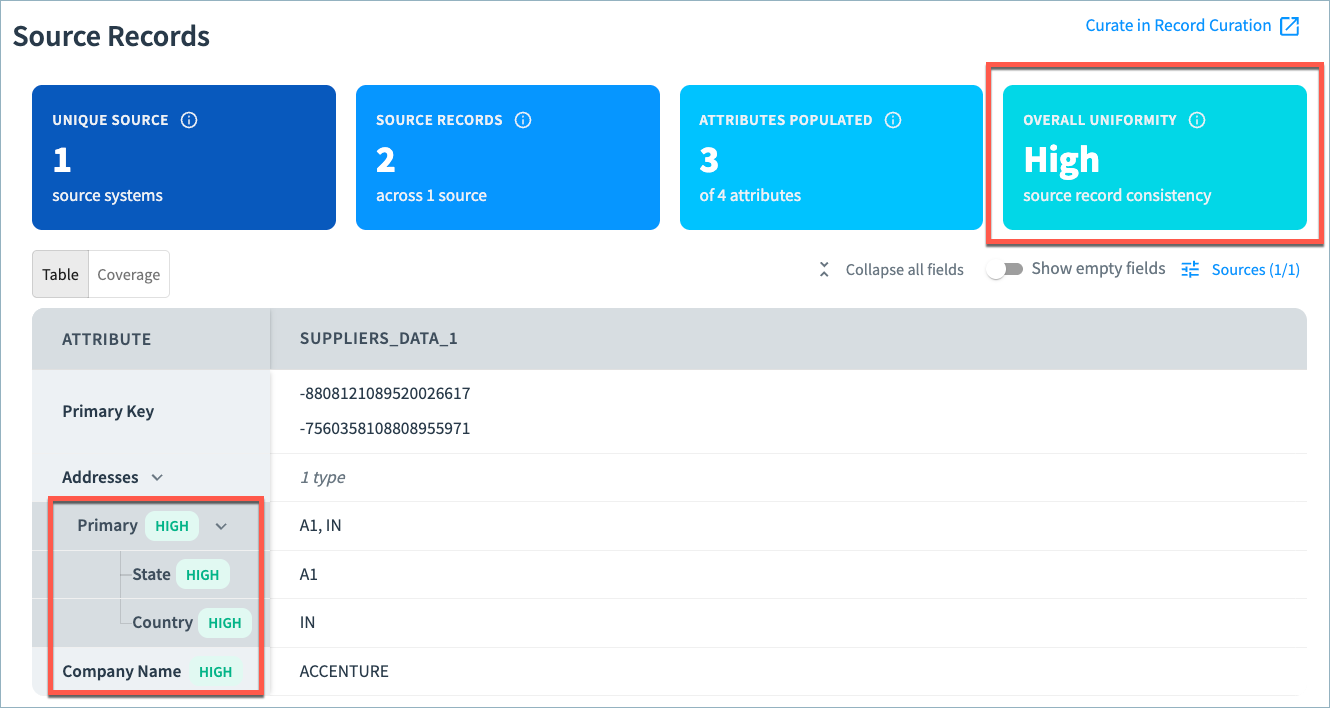
If configured, uniformity scores are included in the Source Records section. (See Configuring Uniformity Scores.)
The section includes the Overall Uniformity for the cluster based on the attributes used in the calculation. In the Table tab, you can review individual attribute uniformity. In the example below, the overall uniformity for the cluster is High. Attribute uniformity has been configured for Primary address values and Company Name. The uniformity for those attributes is also High.
Attribute uniformity is also available on the Coverage tab, as shown below.
- High unformity: Green line
- Medium uniformity: Yellow line
- Low uniformity: Red line
Viewing Attribute Override Details
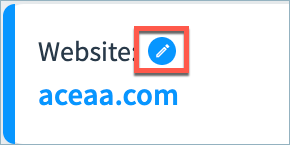
On the 360 page, attributes with values set by a user override are indicated with a User Override  icon:
icon:
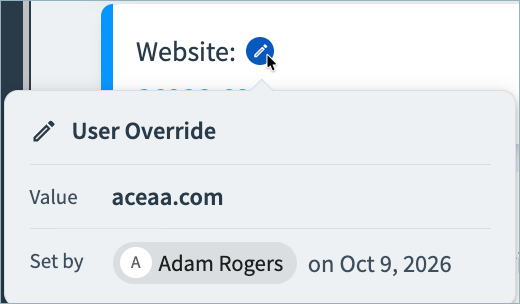
Select the icon to see override details, including the user who applied the override, when it was applied, and the override value.
Accessing Phone and Address Enrichment Attributes
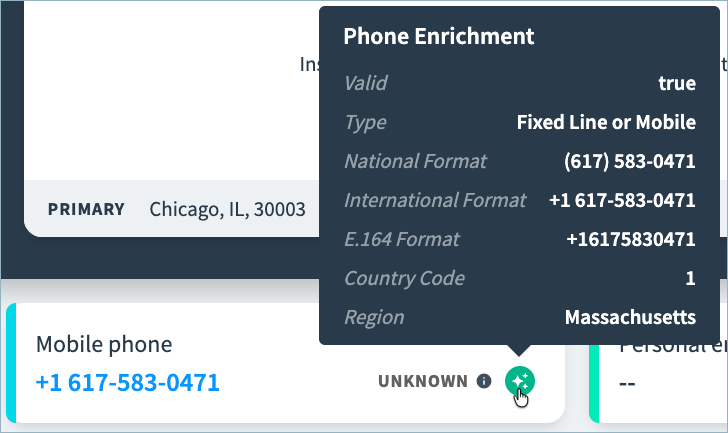
Enriched phone and address data is available on the 360 page, indicated with an Enriched  icon. Select the icon to view all enrichment attributes. You can also copy values from the enrichment popup window.
Viewing Firmographic Enrichment Data for B2B Customers
If you are using the B2B Customers data product and configured firmographic enrichment, enrichment details and corporate hierarchy are included on the 360 page.
External Enrichment Details
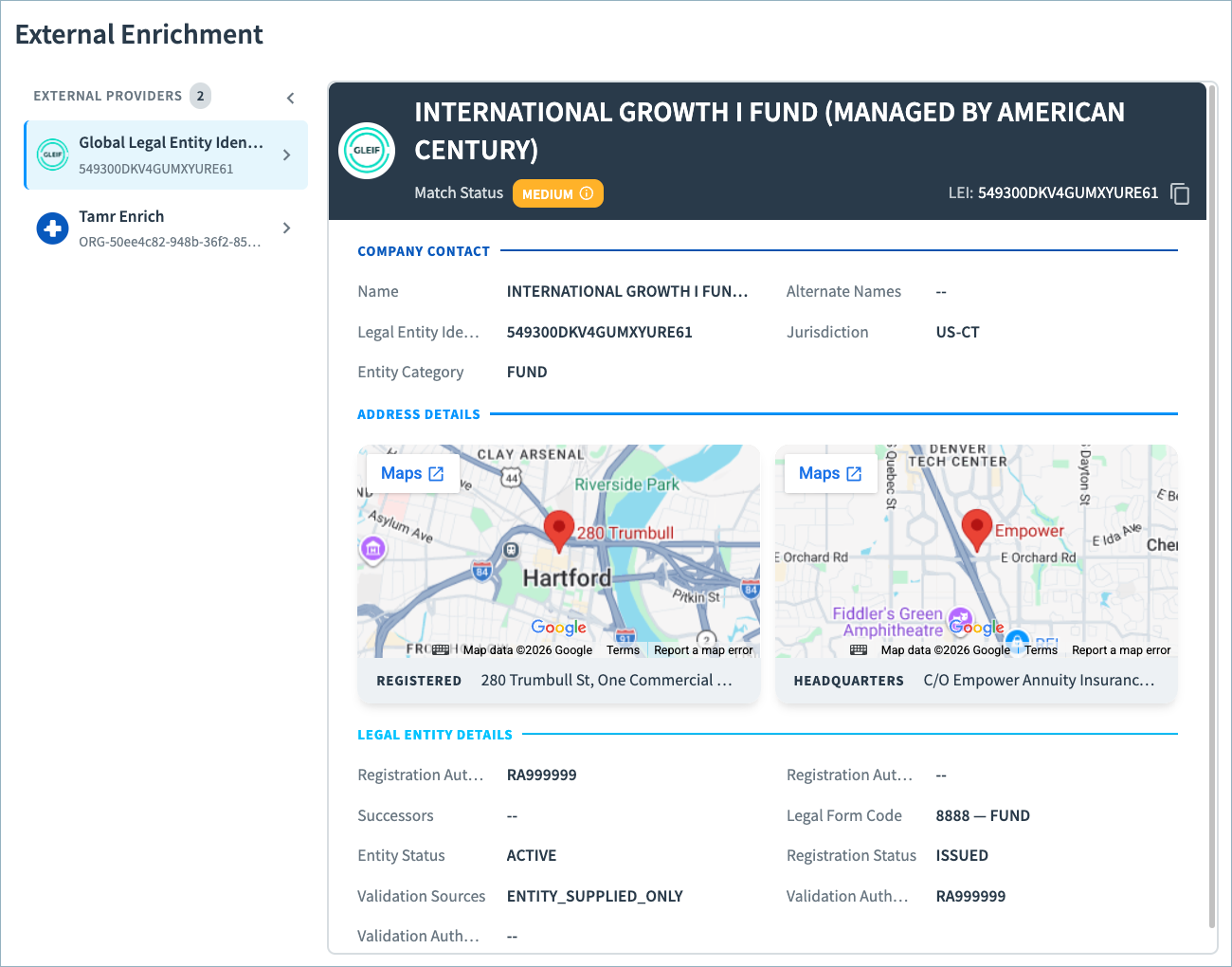
The External Enrichment section provides key attributes from matches returned by the enrichment sources selected for the data product.
For each provider, this section includes the match confidence (match status), which ranges from Very High to Low.
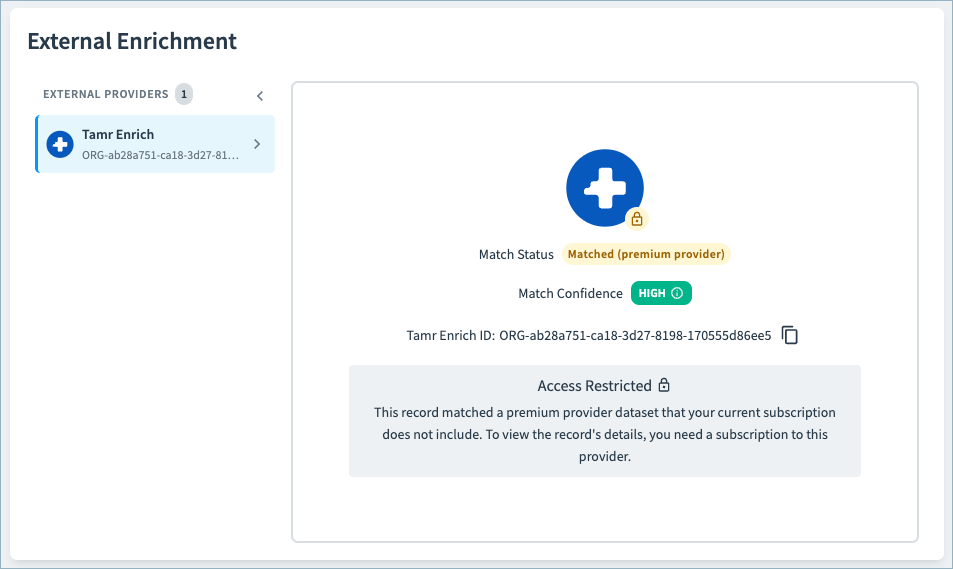
Your records may match to reference records that are available only in a premium enrichment provider to which you are not subscribed. In this case, Tamr returns the firmographic service organization ID (ORG_) and match confidence, but cannot return the enriched attributes from that provider.
Corporate Hierarchy: Tamr Firmographic Enrichment
These pages also include corporate hierarchy information returned by firmographic enrichment services.
You can choose to view the hierarchy as a diagram (default) or as a table, as shown below. You can also expand this section to full screen, making it easier to navigate the hierarchy diagram.
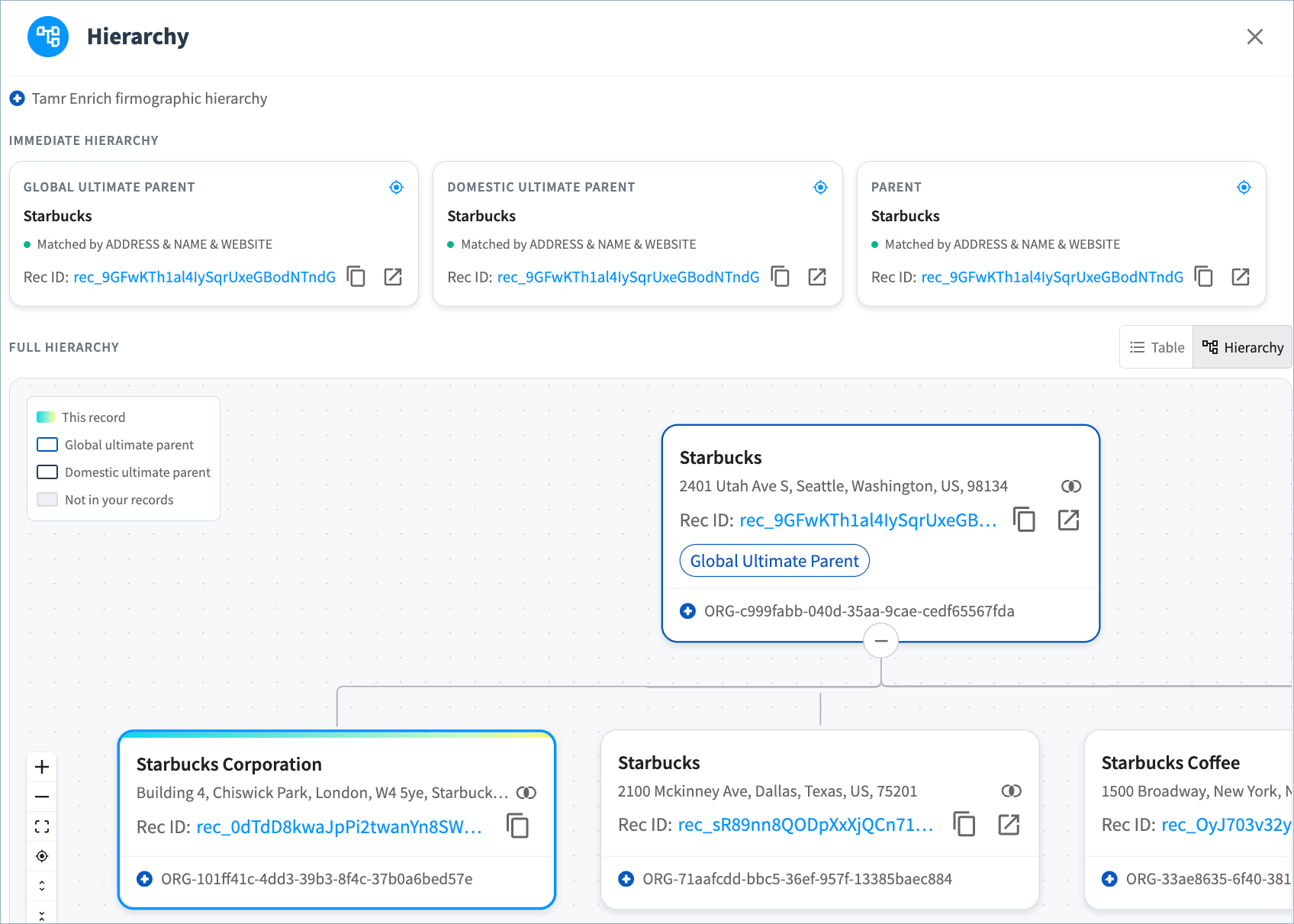
Note: If you have selected multiple enrichment providers, the main corporate hierarchy shown on the 360 page might be inconsistent with values supplied by the specific data providers.
Reviewing Possible Duplicate Records
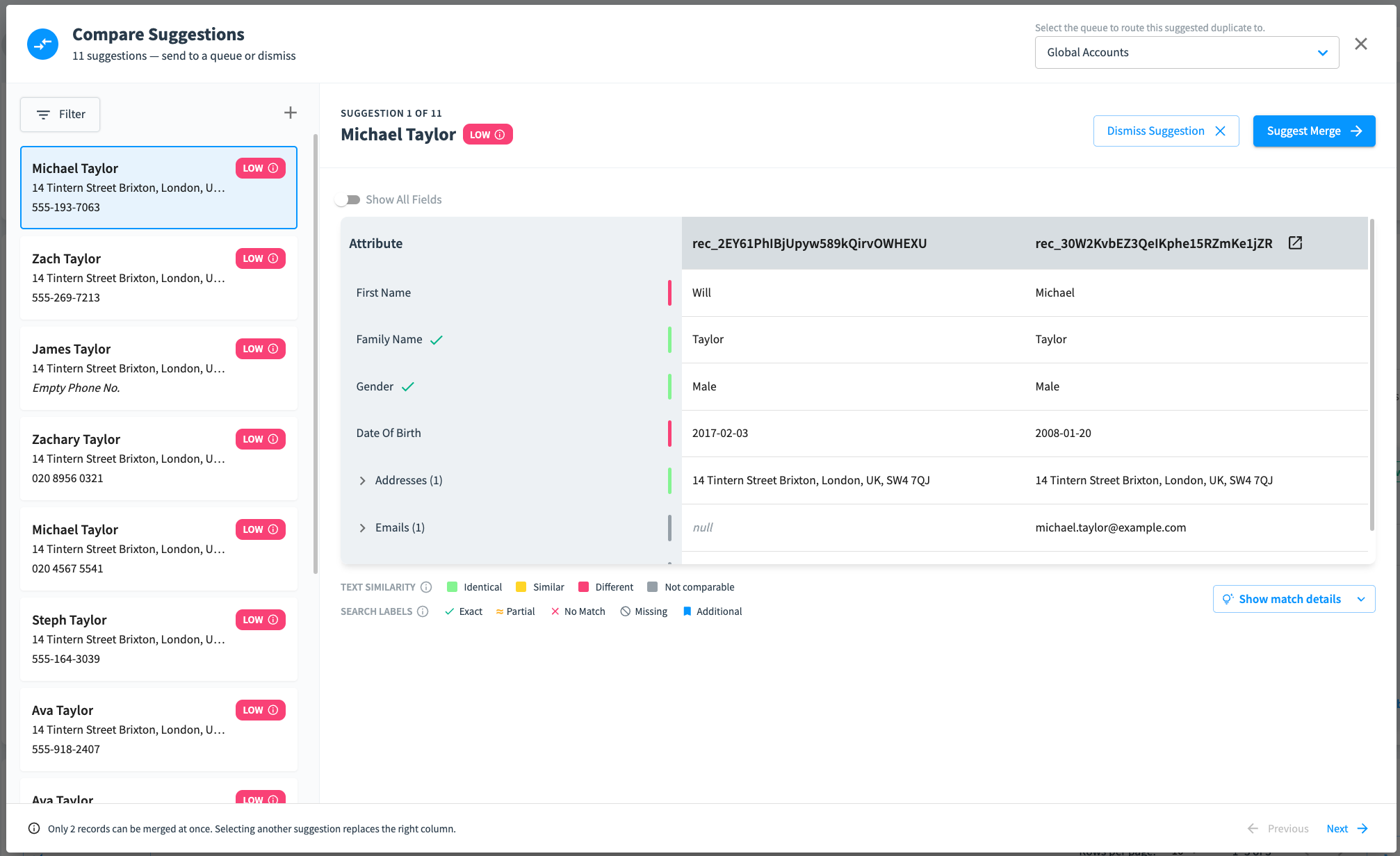
The Feedback section includes possible duplicate records for your review. See Curating Records in the System of Record.
Viewing Relationships between Records
If you have configured relationships between records, related records are shown in the Related Entities section. This section includes a tab for each type of relationship you have defined for records in the data product.
The example below shows the related entities for a company in a B2B Customers data product. In this example, three relationship types have been configured. The company has a total of 7 relationships to other entities in the B2B Customers data product and a Contacts data product.
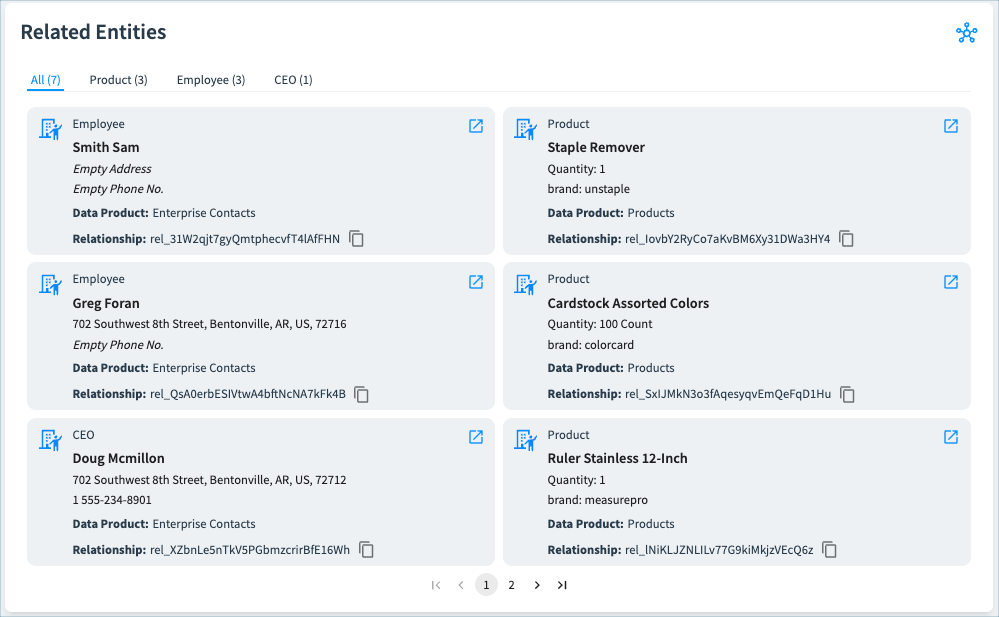
Users can view only relationships to records in data products they can access. In the example above, if a user has access only to the B2B Customers data product and not to the Contacts data product, the user will not see any Employee or CEO relationships.
See Managing Relationships for instructions on adding and updated relationships from this page.
Reviewing Record History
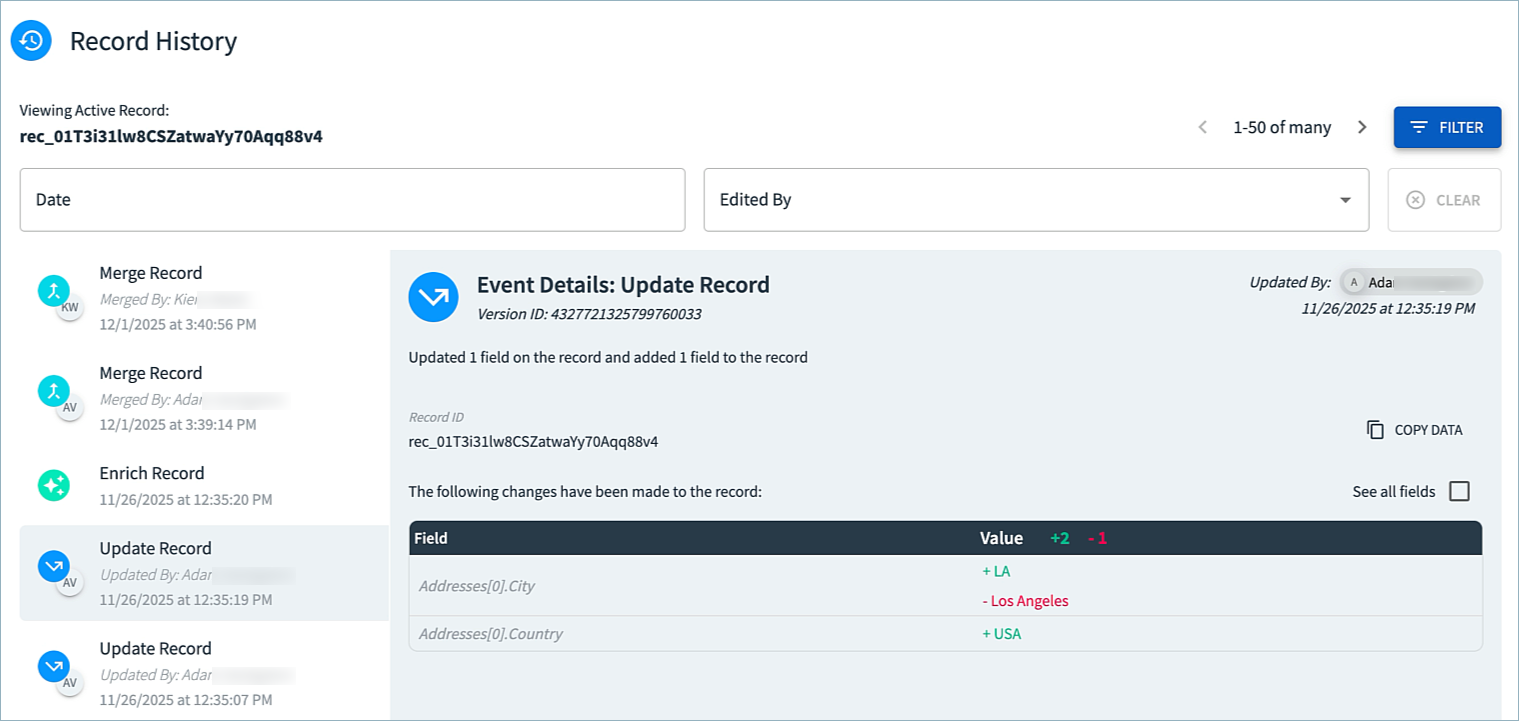
In the Record History section, you can review all updates to this record over time, including the type of change, user who made the change, and change details. You can filter record events by date range and user.
Updated 4 days ago