
Configuring Duplicate Handling
When you run the Review workflow, Tamr iterates through all existing golden records to identify possible duplicate records.
On the Duplicate Handling page, you can configure what actions to take when Tamr identifies possible duplicates. The duplicate handling settings apply to every suggested duplicate, whether it comes from a workflow or through the search then create or update record API operation.
For example, you might want to use Tamr’s default settings - merging all very high and high confidence matches automatically and routing medium confidence matches to a queue for curators to review.
You might also want to handle suggested duplicates differently depending on the type of record. For example, you might send all possible matches for given region to a regional queue, by sending any records where country is US to a "US Accounts" queue, and so on.
When setting up duplicate handling, you can:
- Enable or disable the Auto-Dimiss policy for the data product, which determines how user-suggested duplicates are handled when newer suggestions are made for the same record pair.
- Add one or more suggested duplicate queues in which to route duplicate records. You can also add and fully manage queues from the Queues page. See Configuring Queues.
- Configure the default rule for handling suggested duplicates, including what action Tamr should perform on the suggestion based on the match confidence. Match confidence levels are determined by your search configuration. Default values are very high, high, medium, and low.
- Configure additional rules for handling suggested duplicates for records that match certain criteria. For example, if your records include a custom field for
account_tier, you might create a rule to handle records in whichaccount_tierisgold, and another rule to handle lower tier accounts. If one or both of the records in the suggested duplicate pair meets the rule criteria, that rule is applied. - For each rule, determine the queue to which to send duplicate records for curator review.
You cannot run the Review workflow until you have configured and enabled duplicate handling.
Setting the Auto-Dimiss Policy for Stale Queue Items
Tamr keeps all suggested duplicates queues up to date by automatically dismissing items when:
- A newer Tamr suggestion replaces a previous suggestion made by Tamr. For example, Tamr re-evaluates a record pair in an existing item and the match confidence changes.
- The two records in the item have already been merged.
- One of the records in the item has been deleted.
The auto-dimiss policy (enabled by default) determines how user-suggested duplicates are handled when users or Tamr make newer suggestions for the same record pair. This policy applies to all suggested duplicate queues in the data product.
When enabled, the auto-dismiss policy automatically dismisses existing user-suggested duplicates when:
- A newer Tamr suggestion replaces a previous suggestion made by a user.
- A user-suggested duplicate matches another user-suggested duplicate already in the queue.
What happens if records change or are merged outside of the suggested duplicate item?
Regardless of the auto-dismiss policy setting, a queue item remains open when records in the item change, as long as a curator can still take an action on the item.
Consider this example: There is a suggested duplicate for records A and B. Record B is merged into record C, and C is the surviving record ID. The existing suggested duplicate is update to suggest a merge between records A and C.
To disable the auto-dismiss policy:
- On the Data Products page, select Configure Data Product on the data product card.
- In the Curation Configuration section, select Duplicate Handling.
- At the bottom of the page, disable the Auto-Dismiss setting.
- Either continue to configure duplicate handling (see next sections) or select Save Draft and return to the main data product configuration page. In Pending Changes, validate your configuration changes and then select Apply Draft and Deploy.
Configuring the Default Routing Rule for the Data Product
Tamr's match model assigns each suggested duplicate a confidence level based on your search configuration. The default values are Very High, High, Medium, or Low. If you have configured match rules, your search configuration also includes a RULE_MATCH confidence level.
You can configure the default routing rule to determine the action that Tamr takes for suggested duplicates at each confidence level, and the queue to which to route suggested duplicate items. Actions include:
- Auto-merge: Merge the records right away. No review needed.
- Create queue item: Add the suggestion to a queue for a curator to review.
- Ignore: Discard the suggestion. No queue item is created.
If your match model has custom confidence levels, assign an action to take for matches with each confidence level.
To help you get started, Tamr provides three preset configuration options for handling these matches: Recommended, Cautious, and Review Everything. Choose a preset option and then adjust the actions as needed.
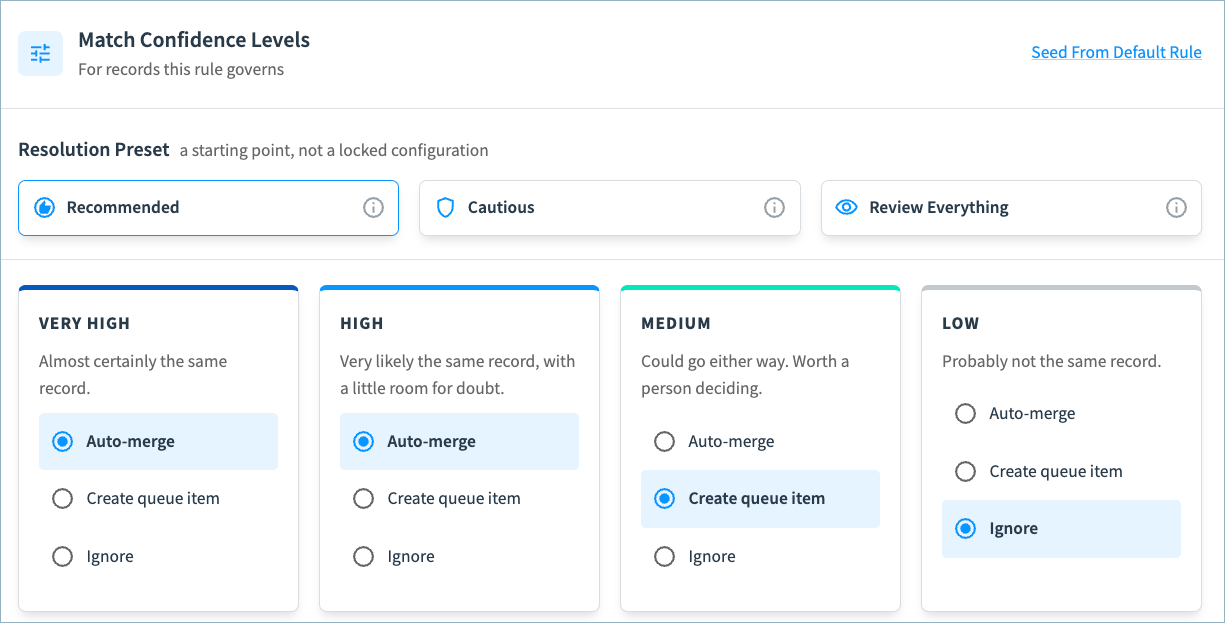
The table below explains the default settings in these preset configurations.
| Resolution Presets | Match Confidence | ||||
|---|---|---|---|---|---|
| Very High | High | Medium | Low | RULE_MATCH | |
| Recommended | Auto-merge | Auto-merge | Create a queue item | Ignore | Auto-merge |
| Cautious | Auto-merge | Create queue item | Create queue item | Ignore | Create queue item |
| Review Everything | Create queue item | Create queue item | Create queue item | Create queue item | Create queue item |
To configure the default routing rule for duplicates:
-
On the Data Products page, select Configure Data Product on the data product card.
-
In the Curation Configuration section, select Duplicate Handling.
-
If you have not configured any queues for this data product yet, Tamr recommends creating a suggested duplicate queue named
<Data Product Name> Suggested Duplicates.
Either:- Select Create this Queue to create a queue with the suggested name.
- Select Create a Different Queue to create a queue with a different name. Enter the queue name and choose Create Queue.
-
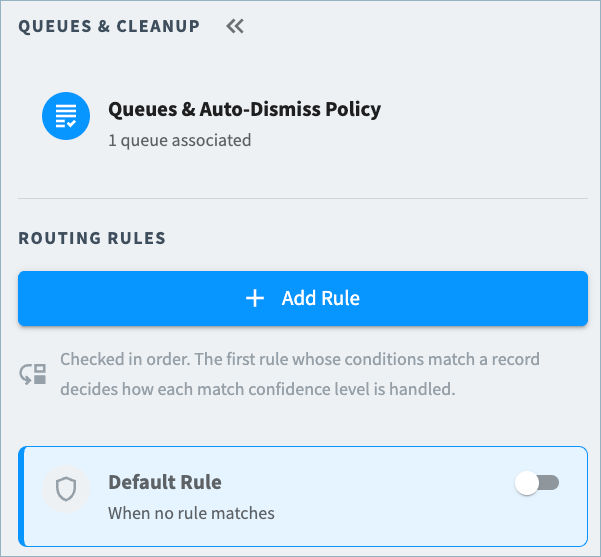
Select Default Rule from the Queues & Auto-Dimiss Policy section.
-
In the Target Queue section, choose the queue to which you want to route suggested duplicates for review.
-
In the Match Confidence Levels settings, select the preset configuration that best matches how you want to handle matches at different confidence levels. Adjust the settings for each confidence level as needed.
Note: If your match model has a custom confidence level, assign an action to take for matches with that confidence level. -
Select the Default Rule Play enable/disable toggle enable the default duplicate handling for the data product.

-
Select Save Draft and return to the main data product configuration page.
-
In Pending Changes, validate your configuration changes and then select Apply Draft and Deploy.
When the configuration has deployed, the Review workflow is enabled for use.
Configuring Custom Duplicate Routing Rules
You can configure additional rules for handling suggested duplicates for records that match certain criteria. If one or both of the records in the suggested duplicate pair meets the rule criteria, that rule is applied.
For example, you might create a rule to handle records for high priority customers differently than records from all other customers, or route suggested duplicates to different queues depending on the records’ region.
You can determine the action that Tamr performs for matches at each confidence level for records that match the rule conditions, and the queue to which to send suggested duplicate items.
Each rule has:
- Target queue: The queue that receives items from this rule. It must be a queue associated with the data product. (You can create a new queue on the Duplicate Handling page if needed.)
- Conditions: Attribute conditions that a record must meet, combined with all or any. Conditions include: equals, does not equal, is one of, is not one of, is set, is not set. To meet the rule conditions, attribute values must match exactly, including case.
- Match confidence levels: The action to take at each confidence level for records that match this rule.
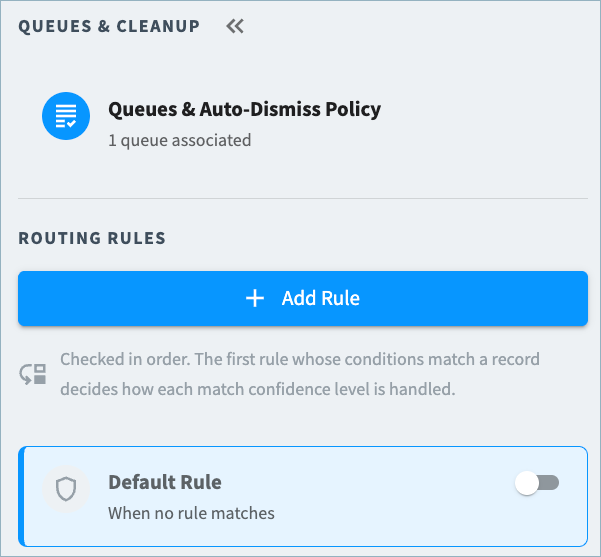
You can add multiple routing rules. Tamr evaluates rules in order; the first rule that matches a record determines how the possible match is handled. If no custom rule matches, the Default Rule is used.
To configure the additional routing rule for duplicates:
-
On the Data Products page, select Configure Data Product on the data product card.
-
In the Curation Configuration section, select Duplicate Handling.
-
In the Queues list, review the available queues. If you need a new queue for suggested duplicates that meet this rule’s criteria, select Add Queue. Enter a queue name and select Create Queue.
-
Select Add Rule from the Queues & Auto-Dimiss Policy section.
-
In the rule configuration settings, name the rule. Select the Edit icon next to the rule name and then enter the rule name.

- In the Target Queue section, choose the queue to which you want to route suggested duplicates that meet the rule criteria.
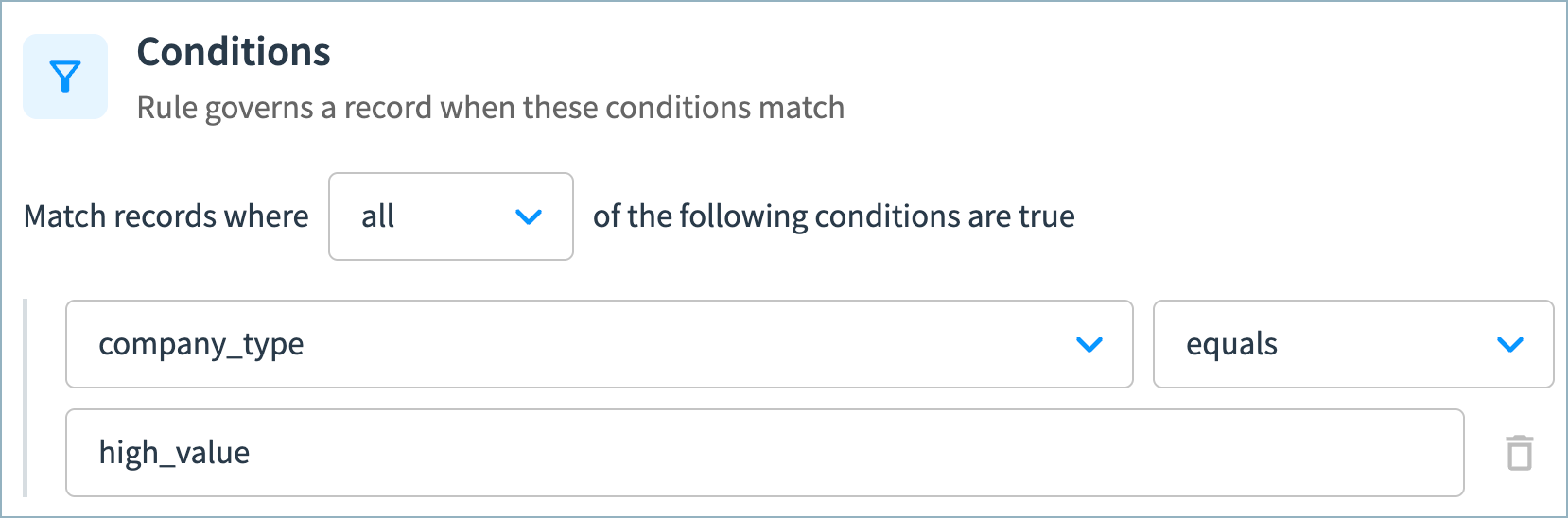
- In the Conditions section, choose the conditions that determine whether this rule should be used to handle a suggested duplicate.
-
Select whether one or both records in the suggested duplicate must meet all or any of the specified criteria.
-
Select the attribute to use in the criteria.
-
Select the condition the attribute value must meet (equals, does not equal, is one of, is not one of, is set, or is not set).
-
Enter the attribute value to compare.
-
-
In the Match Confidence Levels settings, select the preset configuration that best matches how you want to handle matches at different confidence levels. Adjust the settings for each confidence level as needed.
Note: If your match model has a custom confidence level, assign an action to take for matches with that confidence level. -
Custom rules are enabled by default. If you are not ready to start routing records using this rule, select the Pause icon next to the rule name. Tamr will not use this criteria to route duplicates until it is enabled.
-
Add additional rules as needed for handling other types of suggested duplicates.
Tip: You can copy a rule if you want to use similar settings in another rule. -
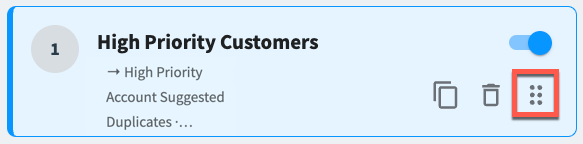
In the Routing Rule section, drag and drop rules to reorder them. Tamr evaluates rules in order; the first rule that matches a record determines how the possible match is handled.
- Select Save Draft and return to the main data product configuration page.
- In Pending Changes, validate your configuration changes and then select Apply Draft and Deploy.
Disable Duplicate Handling Rules
You can disable a duplicate handling rule if you want Tamr to bypass this rule when deciding how to handle a suggested duplicate. For example, you might want to bypass a rule temporarily during testing.
Important: If you disable all duplicate handling rules, the Review workflow will not run.
Should I disable a duplicate handling rule or pause the queue itself?
On the Queues page, you can choose to pause a queue. In this case, suggested duplicates are not added to that queue. See Configuring Queues.
If you pause the queue, no new items can be added to the queue even if the suggested duplicate matches rule criteria.
If you disable the duplicate handling rule, Tamr can still create the suggested duplicate in another queue. Tamr bypasses the rule when deciding how to handle the suggested duplicate and routes it based on the next matching rule.
To disable a duplicate handling rule:
-
On the Data Products page, select Configure Data Product on the data product card.
-
In the Curation Configuration section, select Duplicate Handling.
-
In the Routing rules section, select enable/disable toggle to disable the rule.

- Select Save Draft and return to the main configuration page.
- In Pending Changes, validate your configuration changes and then select Apply Draft and Deploy.
Adjusting Duplicate Handling Configuration
Over time, you might want to add suggested duplicate queues, change the actions Tamr performs for matches at different confidence levels, or change the auto-dimiss policy.
Important: Any changes you make are applied going forward as new suggested duplicates are identified. Existing queue items are not re-evaluated when you change the configuration.
To adjust the duplicate handling configuration:
- In the Duplicate Handling page, make the necessary configuration changes.
- Select Save Draft and return to the main configuration page.
- In Pending Changes, validate your configuration changes and then select Apply Draft and Deploy.
Updated 7 days ago