
Adding and Running Enrichment in a Data Product
Limited ReleaseRealTime data products are in limited release. Some functionality is still in development and is subject to change. If you are interested in using these data products, contact Tamr Support ([email protected]).
The new enrichment configuration options are available only for new RealTime data products. The options are not available yet if Tamr has already enabled enrichment in your RealTime data product.
For all data products, you can choose to enable address and phone enrichment.
For B2B Customers data products, you can also choose to enable firmographic enrichment from selected sources.
For Healthcare Providers data products, you can also choose to enable NPPES Provider Lookup enrichment.
Adding Address Enrichment to a Data Product
To add address enrichment to a data product:
-
On the Data Products page, select Configure Data Product on the data product card.
-
In the Golden Records card, select Enrichment & Data Quality Standards.
-
In the Enrichment section, select Address Enrichment.
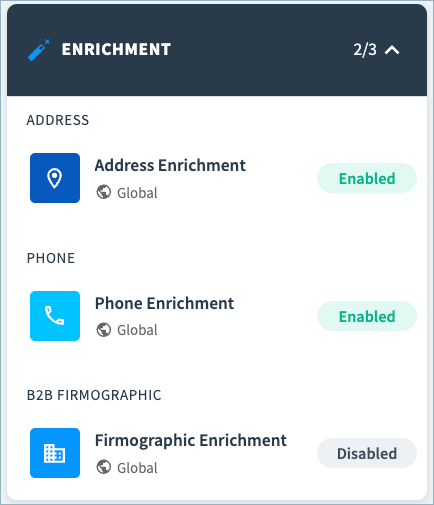
-
In the Address Types section, choose which address types to enrich.
-
If you are using the B2B Customers data product, select whether to include the company name when sending the address for enrichment.
-
Select Save Draft when you have finished configuring enrichment.
-
Return to the main configuration page.
-
In Pending Changes, Validate your configuration changes and then select Apply Draft and Deploy.
Adding Phone Enrichment to a Data Product
To add phone enrichment to a data product:
-
On the Data Products page, select Configure Data Product on the data product card.
-
In the Golden Records card, select Enrichment & Data Quality Standards.
-
In the Enrichment section, select Phone Enrichment.
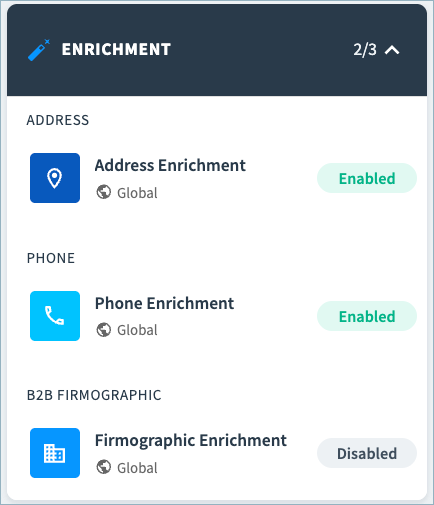
-
In the Phone Types section, choose which phone types to enrich.
-
In the Input mappings section at the bottom of the page, review the default country attribute being provided for phone match for each selected phone type. Select Adjust mappings if you want to map a different country attribute.
-
Select Save Draft when you have finished configuring enrichment.
-
Return to the main configuration page.
-
In Pending Changes, Validate your configuration changes and then select Apply Draft and Deploy.
Adding Firmographic Enrichment Sources to a Data Product
Firmographic enrichment is available in B2B Customers data products.
To add firmographic enrichment sources to a data product:
-
On the Data Products page, select Configure Data Product on the data product card.
-
In the Golden Records card, select Enrichment & Data Quality Standards.
-
In the Enrichment section, select Firmographic Enrichment.
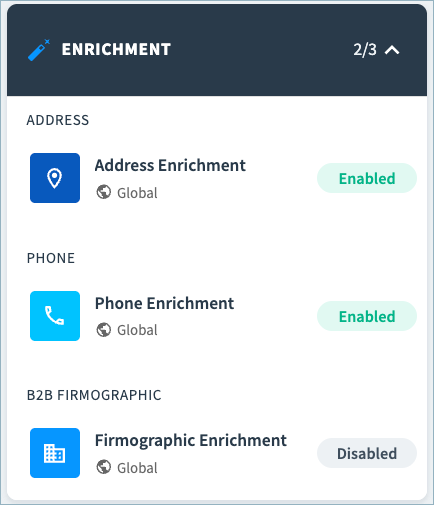
-
To add a firmographic data source, set the toggle on the card to enabled.
Tip: Select View attributes to see the full list of enriched attributes added by this source.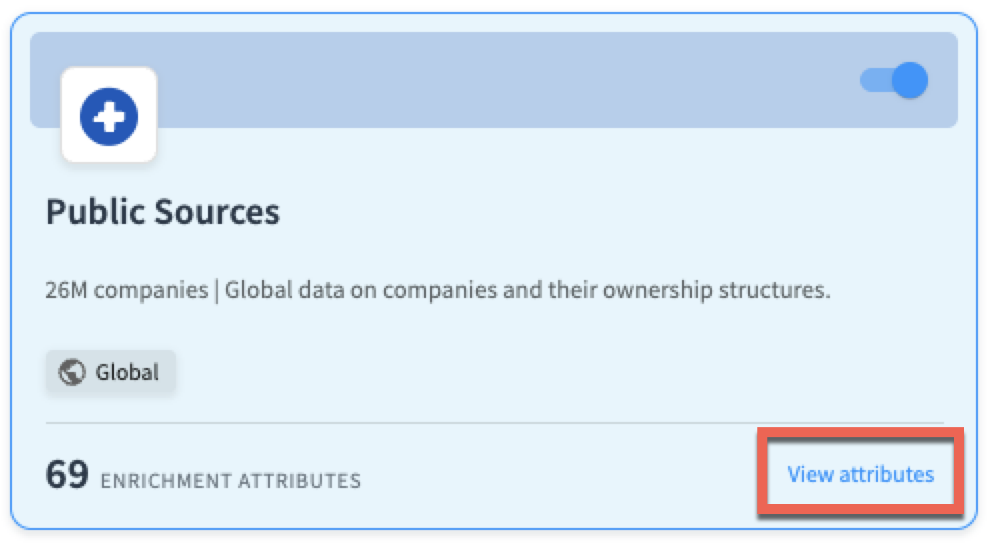
-
Repeat step 4 to enable other sources.
-
In the Input mappings section at the bottom of the page, review the default attributes being provided for firmographic match. Select Adjust mappings if you want to map other attributes. For example, you might want to send the billing address instead of the primary address values for matching.
-
Select Save Draft when you have finished configuring enrichment.
-
Return to the main configuration page.
-
In Pending Changes, Validate your configuration changes and then select Apply Draft and Deploy.
Adding Dun & Bradstreet Enrichment to a Data Product
Dun & Bradstreet enrichment (D&B) is a separately licensed enrichment service available in B2B Customers data products.
To add D&B enrichment sources to a data product:
-
On the Data Products page, select Configure Data Product on the data product card.
-
In the Golden Records card, select Enrichment & Data Quality Standards.
-
In the Enrichment section, select Dun & Bradstreet.
-
Enable the DUNS Match option to match your company records to DUNS numbers.
-
In the Confidence Thresholds section, adjust the criteria used to determine the DUNS match quality and whether the match is accepted. These criteria includes:
- Default Confidence Code for the DUNS match. The default threshold is 8. This is the minimum confidence at which the match is accepted.
- Default Match Grade Patterns that define acceptable Match Grade Strings. By default, no patterns are defined.
If you specify Match Grade String Patterns:- If the Confidence Code is not met, Tamr Cloud uses the Match Grade Pattern to determine whether to apply the DUNS match result.
- If either the Confidence Code or Match Grade Pattern is not met, Tamr Cloud does not accept or apply the DUNS match results.
- In the Country Overrides section, override the confidence code and match grade patterns as needed for individual countries.
-
In the Input mappings section at the bottom of the page, review the default attribute mappings. Select Adjust mappings if you want to change the mapped fields.
-
To enable D&B Data Block enrichment, scroll to the top of the page and then choose D&B Data Blocks.
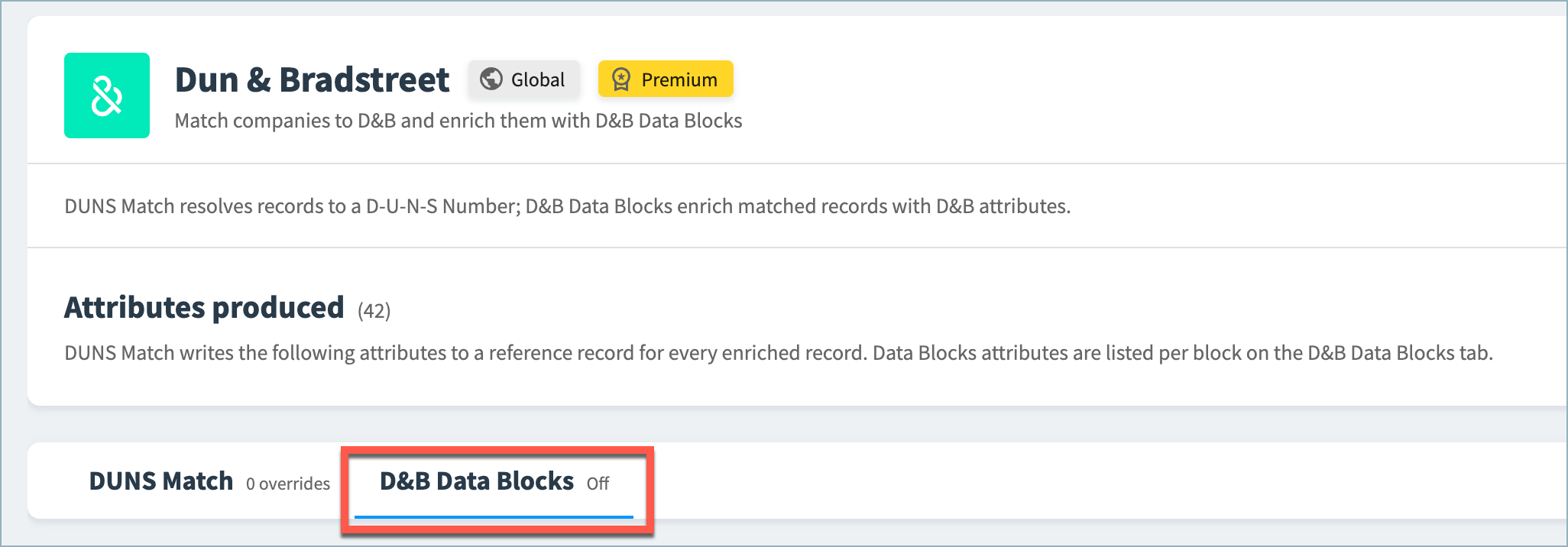
-
Toggle the option to enable the Data Blocks to which you are entitled by your API key.
All data blocks to which you are entitled are enabled. -
Optionally, filter which golden records are sent for D&B Data Block enrichment. In the Enrichment Filter section, select Add Filter.
Select an on which to filter and specify the filter value. A golden record is sent for enrichment only if the golden record value of the selected attributes matches the exact value specified and if the golden record is a high confidence DUNS match.
-
Select Save Draft when you have finished configuring enrichment.
-
Return to the main configuration page.
-
In Pending Changes, Validate your configuration changes and then select Apply Draft and Deploy.
Adding NPPES Provider Lookup Enrichment to a Data Product
NPPES Provider Lookup enrichment is available in Healthcare Providers data products.
To add NPPES Provider Lookup enrichment to a data product:
-
On the Data Products page, select Configure Data Product on the data product card.
-
In the Golden Records card, select Enrichment & Data Quality Standards.
-
In the Enrichment section, select NPPES Provider Lookup.
-
In the Input mappings section at the bottom of the page, review the default attribute mappings. Select Adjust mappings if you want to change the mapped fields.
Important: If you map an NPI attribute and the value matches an NPPES record, this match takes precedence over other inputs.
-
Select Save Draft when you have finished configuring enrichment.
-
Return to the main configuration page.
-
In Pending Changes, Validate your configuration changes and then select Apply Draft and Deploy.
Adjusting Enrichment in a Data Product
To adjust the firmographic enrichment in a data product:
-
On the Data Products page, select Configure Data Product on the data product card.
-
In the Golden Records card, select Enrichment & Data Quality Standards.
-
In the Enrichment section, select the enrichment service you want to adjust.
-
Make the necessary configuration changes.
-
Select Save Draft when you have finished configuring the standard.
-
Return to the main configuration page.
-
In Pending Changes, Validate your configuration changes and then select Apply Draft and Deploy.
Using Enriched Values in Golden Records
You can choose to use values from the Address, Firmographic, Dun & Bradstreet, and NPPES Provider Lookup enrichment sources as golden record values.
Important for limited release: Currently, you cannot prioritize phone enrichment sources in record consolidation rules.
Using Enriched Address Values in Golden Records
When Tamr enriches your source addresses, the attributes supplied by the enrichment sources are added as additional record attributes.
You can also choose to use values from high confidence Google address matches as golden record values for address fields.
To prioritize address and firmographic enrichment values in golden records:
-
On the Data Products page, select Configure Data Product on the data product card.
-
In the Golden Records card, select Consolidation rules. The Consolidation Rules page opens.
-
Select Edit for Addresses.
-
Select Add Condition to add a source priority condition.
-
On the Source Priority tab, configure priority tiers to select records from the Google Address source.
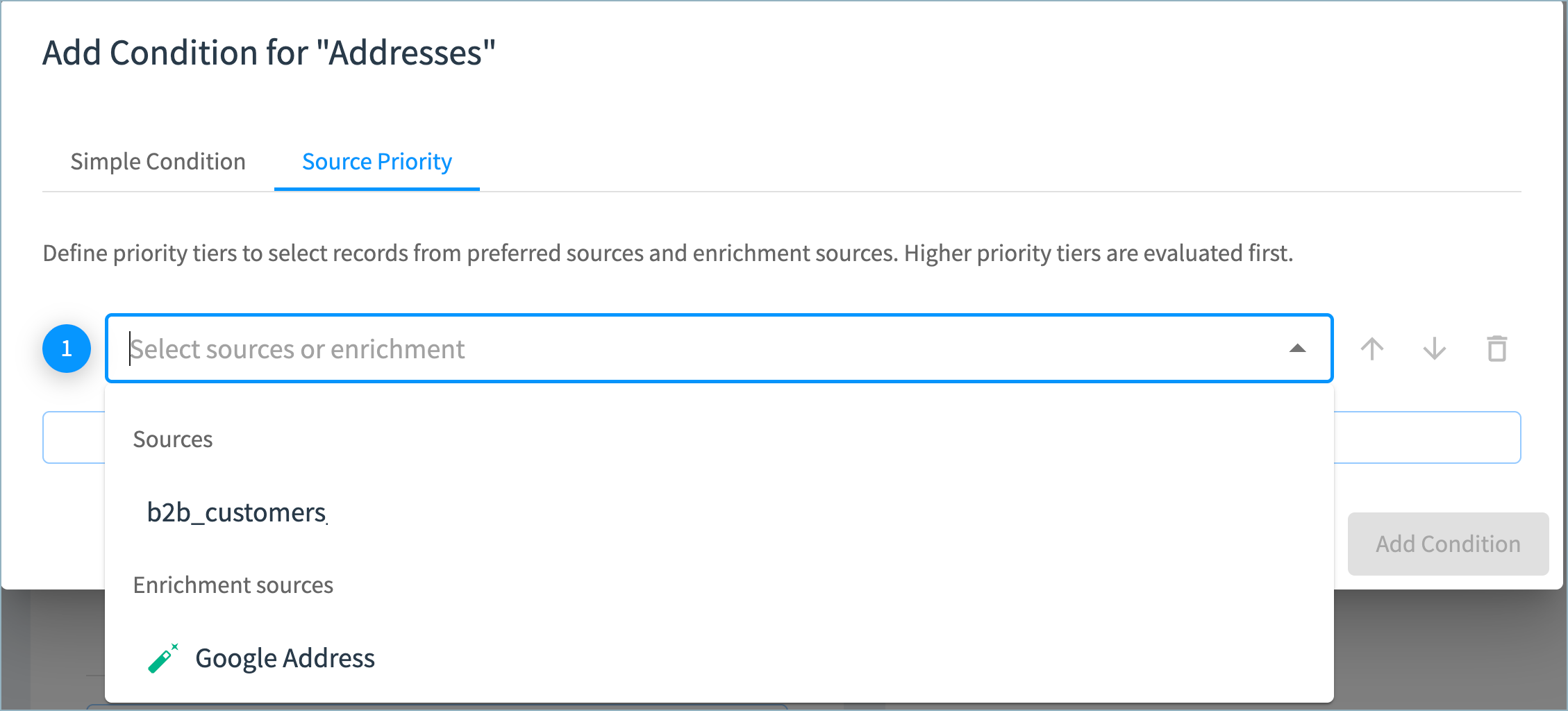
-
Choose the minimum match quality for the address enrichment match:
- Strict: The location type for this match must be rooftop, which means that this match is based on a precise geocode.
- Balanced: The location type for this match must be range interpolated and the match type must be single match. This means the match must be based on (at least) an approximation between two points, such as a road between intersection, and the address matched to a single complete geocoding location.
If you select Balanced, matches that meet the criteria for either Balanced or Strict will be used in the golden records.
-
Select Add Condition to add this condition.
-
Adjust other consolidation rules as needed.
-
Select Save Draft when you have finished updating the rule.
-
Return to the main configuration page.
-
In Pending Changes, Validate your configuration changes and then select Apply Draft and Deploy.
Using Enriched Firmographic Values in Golden Records
When Tamr enriches your company records, the attributes supplied by the firmographic enrichment sources are added as additional record attributes.
You can also choose to use values from the firmographic enrichment sources as golden record values.
To prioritize firmographic enrichment values in golden records:
-
On the Data Products page, select Configure Data Product on the data product card.
-
In the Golden Records card, select Consolidation rules. The Consolidation Rules page opens.
-
Select Edit for the rule you want to adjust.
-
Select Add Condition to add a source priority condition.
-
On the Source Priority tab, configure priority tiers to select records from your preferred firmographic source. You can add one or more sources to each tier.
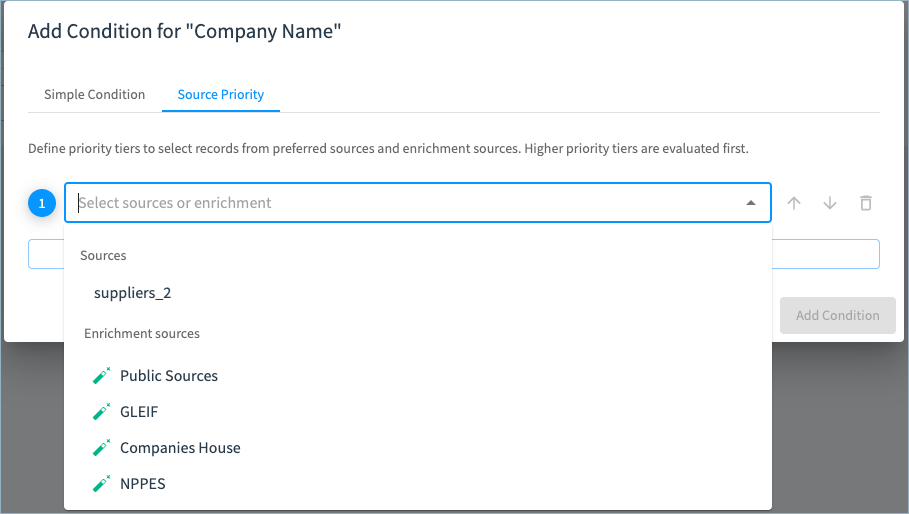
-
Select which enriched attribute from the source to use as the golden record value.
-
Select the minimum confidence for the enrichment match when prioritizing an enrichment source. For example, you may want to use the
organization_namevalue returned by GLEIF enrichment as the golden record company name, provided the match is at high or very high confidence.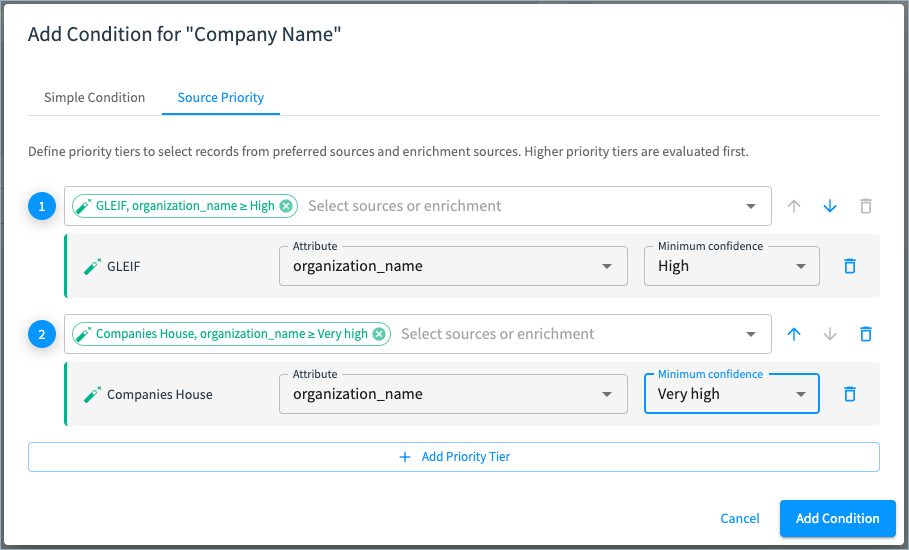
-
Select Add Condition to add this condition.
-
Adjust other consolidation rules as needed.
-
Select Save Draft when you have finished updating the rule.
-
Return to the main configuration page.
-
In Pending Changes, Validate your configuration changes and then select Apply Draft and Deploy.
Using Enriched Dun & Bradstreet Values in Golden Records
When Tamr enriches your company records with DUNS Match and D&B Data Blocks, the attributes supplied by D&B are added as additional record attributes.
You can also choose to use values from DUNS Match or D&B Data Blocks as golden record values.
To prioritize D&B enrichment values in golden records:
-
On the Data Products page, select Configure Data Product on the data product card.
-
In the Golden Records card, select Consolidation rules. The Consolidation Rules page opens.
-
Select Edit for the rule you want to adjust.
-
Select Add Condition to add a source priority condition.
-
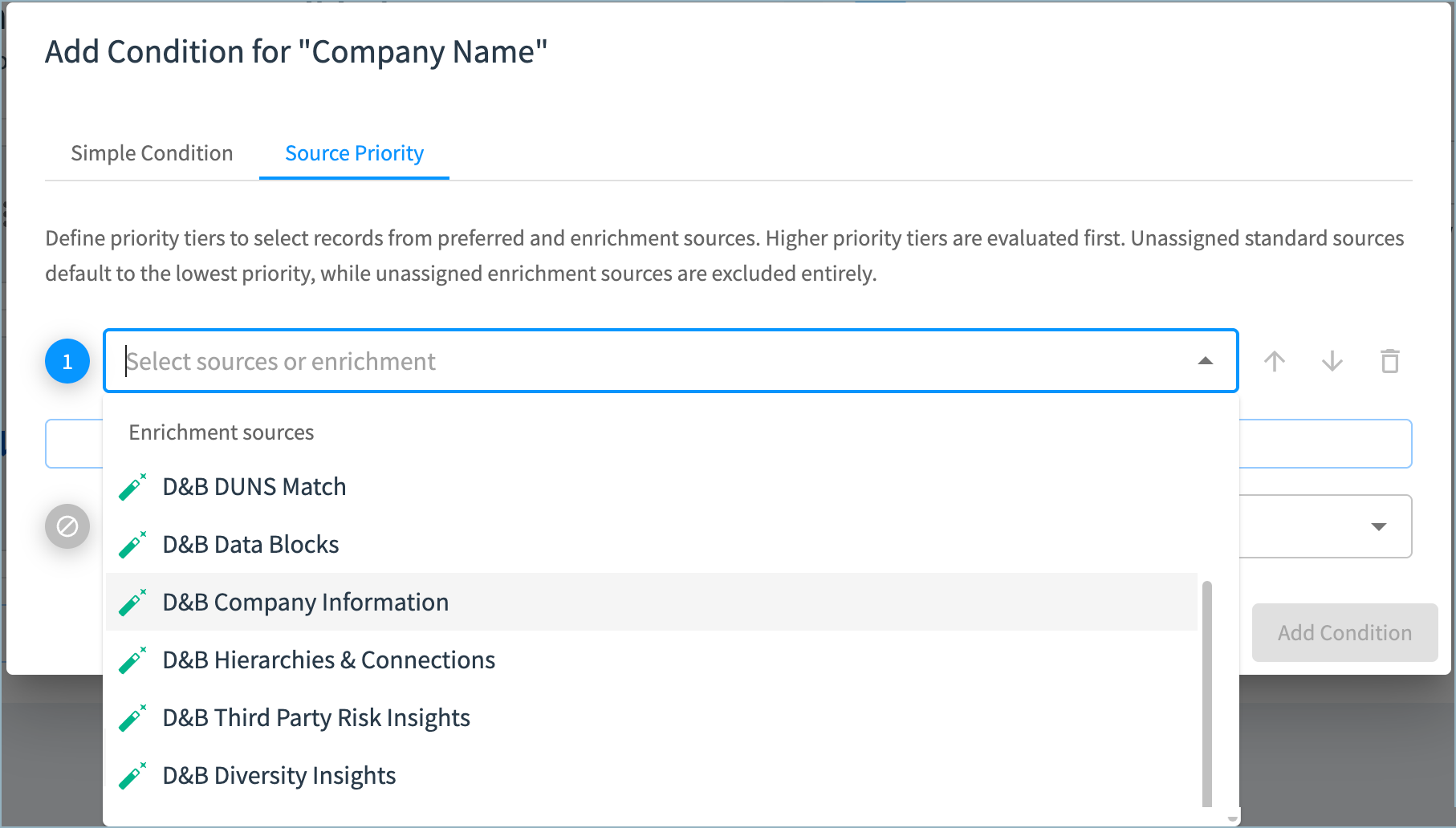
On the Source Priority tab, configure priority tiers to select records from your preferred sources. You can add one or more sources to each tier. From the Select sources dropdown, choose the D&B source you want to priortize (D&B DUN Match, D&B Company Information, D&B Diversity Insights, and so on.)
-
Select which enriched attribute from the source to use as the golden record value.
-
Select Add Condition to add this condition.
-
Adjust other consolidation rules as needed.
-
Select Save Draft when you have finished updating the rule.
-
Return to the main configuration page.
-
In Pending Changes, Validate your configuration changes and then select Apply Draft and Deploy.
Using Enriched NPPES Provider Lookup Values in Golden Records
When Tamr enriches your healthcare provider records, the attributes supplied by NPPES Provider Lookup are added as additional record attributes.
You can also choose to use values from NPPES Provider Lookup as golden record values for all attributes other than license, address, email, and phone attributes.
To prioritize NPPES Provider Lookup enrichment values in golden records:
-
On the Data Products page, select Configure Data Product on the data product card.
-
In the Golden Records card, select Consolidation rules. The Consolidation Rules page opens.
-
Select Edit for the rule you want to adjust.
-
Select Add Condition to add a source priority condition.
-
On the Source Priority tab, configure priority tiers to select records from the NPPES Provider Lookup source. You can add one or more sources to each tier.
-
Select which enriched attribute from NPPES Provider Lookup to use as the golden record value.
-
Select the minimum confidence for the enrichment match when prioritizing an enrichment source. For example, you may want to use the
nppes_provider_credential_textvalue returned by this source as the golden record Credentials value, provided the match is at high or very high confidence.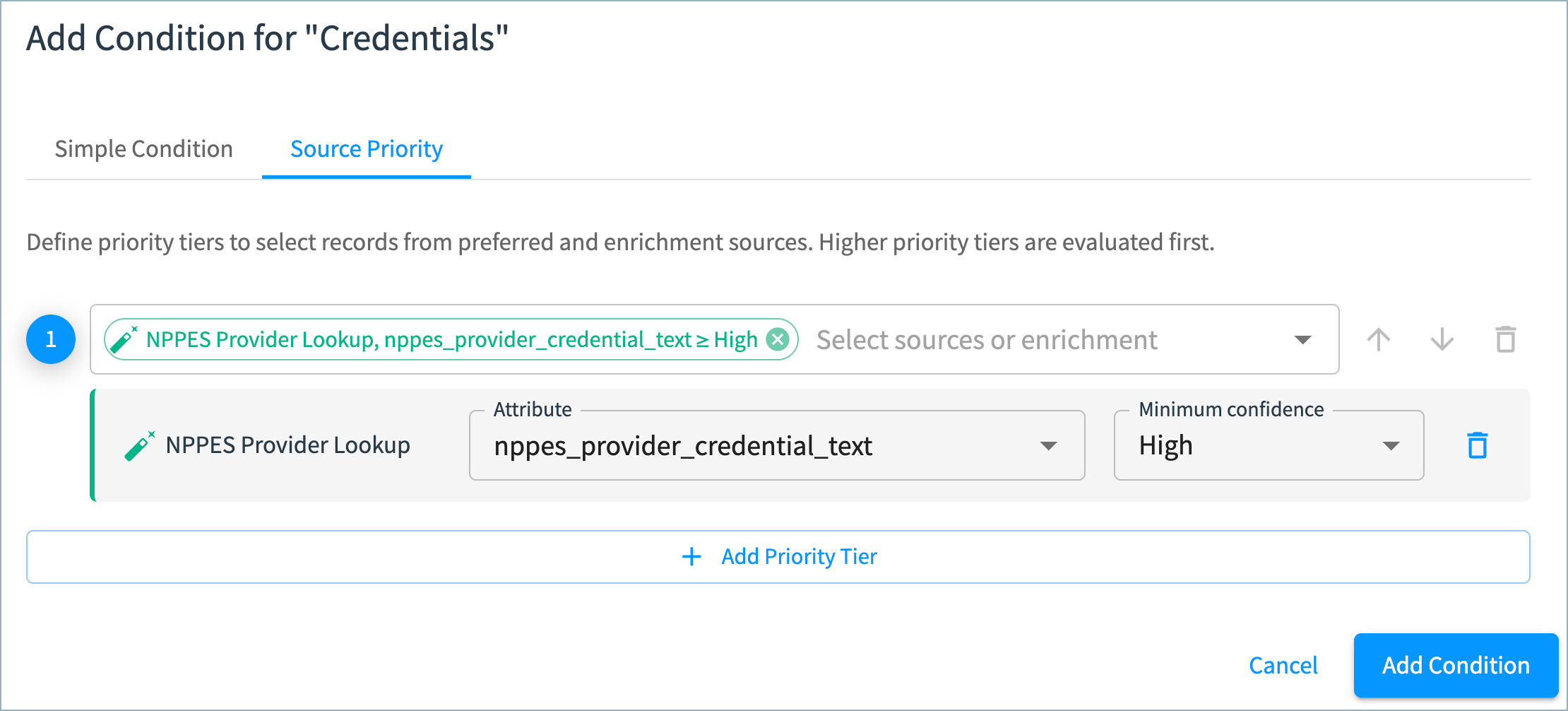
-
Select Add Condition to add this condition.
-
Adjust other consolidation rules as needed.
-
Select Save Draft when you have finished updating the rule.
-
Return to the main configuration page.
-
In Pending Changes, Validate your configuration changes and then select Apply Draft and Deploy.
Running Enrichment on Your Data
If you are adding enrichment as part of the initial data product configuration:
- Run the Onboard Records workflow to create a golden record for each source record.
- Run the Enrich Records workflow to enrich each source record and golden record. This workflow also reconsolidates your golden records after enrichment.
- Run the Review workflow to identify possible duplicate golden records. High confidence matches are merged automatically and medium confidence matches are routed to the Suggested Duplicates queue for curators to review.
If you are processing incremental updates to source records: Run the Resolve workflow to enrich new and updated source records. As Tamr updates or creates clusters, golden records are automatically updated.
If you have changed the enrichment sources:
- Run the Enrich Records workflow to enrich each source record and golden record. This workflow also reconsolidates your golden records after enrichment.
- Run the Review workflow to identify possible duplicate golden records. High confidence matches are merged automatically and medium confidence matches are routed to the Suggested Duplicates queue for curators to review.
Updated 25 days ago