
Adjusting Record Consolidation Rules
Tip: If you have already run the Review workflow, you can preview rule changes on a specified record before deploying the changes to all records in your System of Record.
The attributes table on the Consolidation Rules page provides a quick overview of:
- Rule type: The highest priority condition type (source priority, simple condition, and so on) and the number of additional conditions.
- Conditions: A summary of all conditions defined in the rule.
- Status: Whether the latest version of the rule has been deployed or is in draft state.
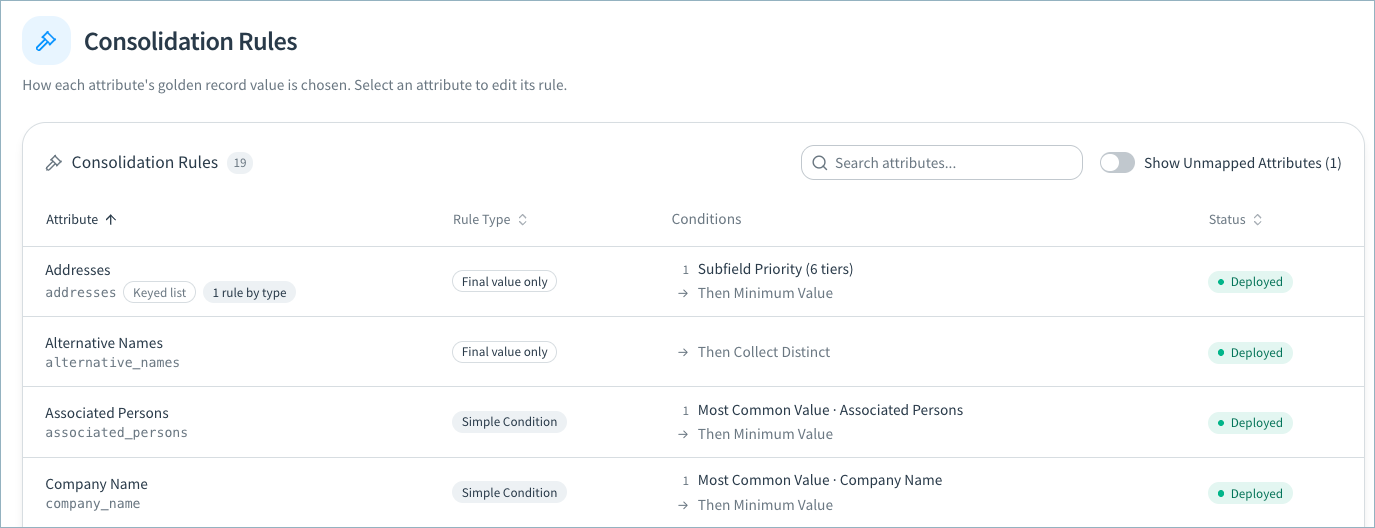
Select an attribute in the table to adjust its record consolidation rules.
Configuring record consolidation rules involves:
- Adjusting the record consolidation rules for attributes as needed.
- Validating and deploy your configuration changes to apply the consolidation rules to all new and updated golden records going forwards.
- Optional: Running the Reconsolidate workflow to recalculate all existing golden records using the updated consolidation logic.
Adjusting Record Consolidation Rules
Most data product attributes are single attributes (company name, first name, and so on). Addresses, emails, and phones, however, are keyed lists containing a number of different address, email, or phone types.
This section explains how to:
- Adjust consolidation rules for single attributes
- Adjust consolidation rules for keyed lists
Adjusting Consolidation Rules for Single Attributes
To adjust the record consolidation rules:
-
On the Data Products page, select Configure Data Product on the data product card.
-
In the Golden Records card, select Consolidation rules. The Consolidation Rules page opens.
-
In the Consolidation Rules table, review the current conditions set for each attribute.
-
Select the attribute you want to adjust. If you want to adjust
-
Select Add Condition to add a new simple condition or priority condition, or specify source priority.
-
Add the condition. You can do one of the following:
- Add a condition on the Simple Condition tab. Select the Condition Type and related attribute, and configure any other necessary settings.
- Adjust source priority on the Source Priority tab. On this tab, you can:
-
Exclude one or more sources from being used as golden record values for the attribute.
-
Configure priority tiers to select records from your preferred sources. You can add one or more sources to each tier.
-
Configure complex priority conditions on the Priority Conditions tab. On this tab, you can define multiple priority tiers. In each tier, define one more simple conditions that records must meet to be considered for the golden record value for this attribute. Within each tier, choose to use AND or OR logic.
In the example below, the golden record Account Number value would first be selected from a record with the most recently created active account. Then, the value would be selected from any record with an active account, even if it were missing a create date. Finally, the golden record value would be selected from the most recently created inactive account.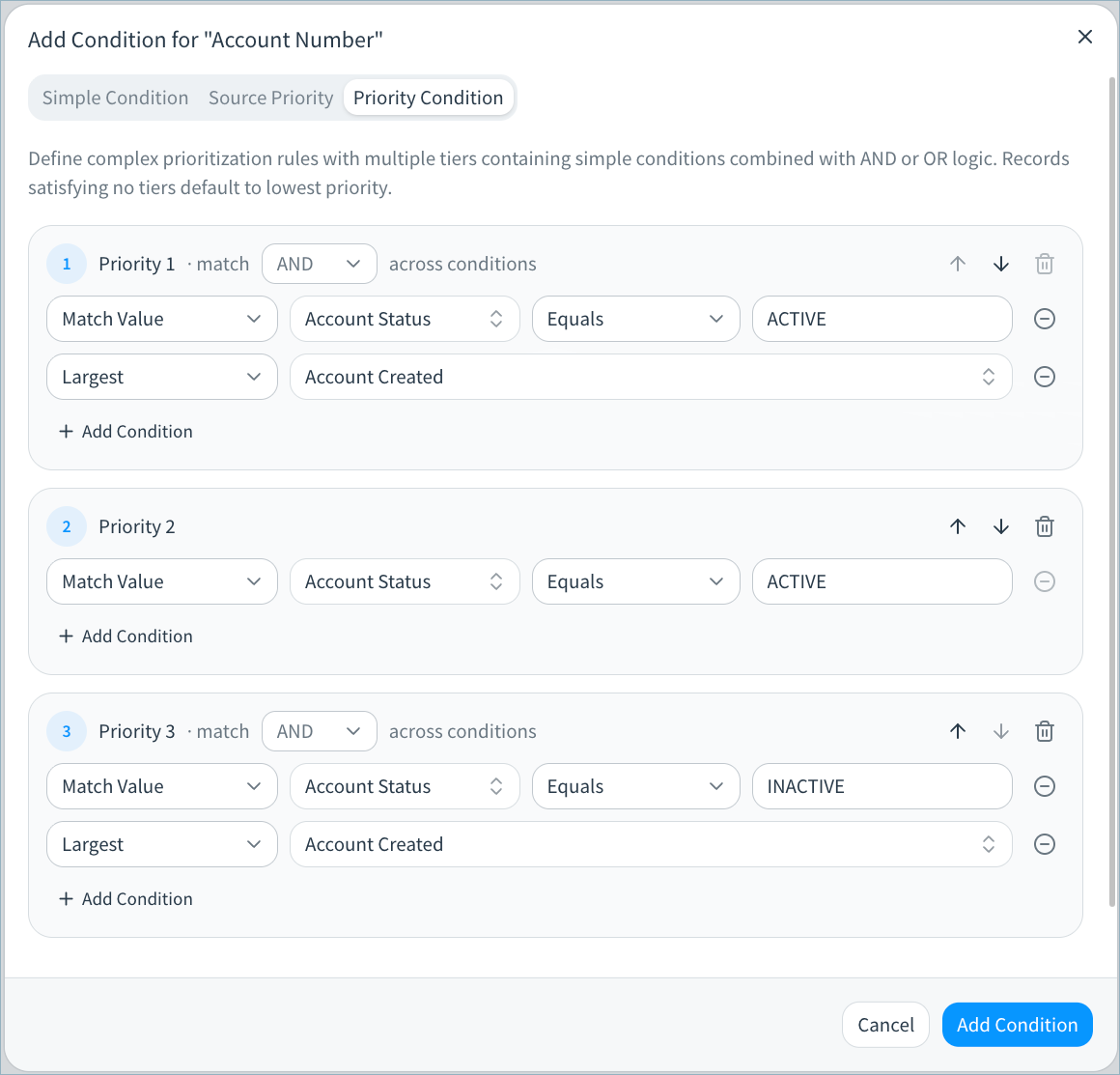
-
-
Select Add Condition to add this condition.
-
In the Preview Changes section, enter the record ID of a record to use to preview the updated rules. In the preview, new record values are show in green and the original values are shown in red.
-
Repeat these steps to add additional conditions to the rule. You can drag and drop the rules into the order in which they should be applied.
-
Select Save Draft when you have finished updating the rule.
-
Navigate back to the data product configuration page.
Adjusting Consolidation Rules for Attribute Groups (Keyed Lists)
In the Consolidation Rules table, the addresses, emails, and phones rows are keyed lists containing a number of different address, email, or phone types. Each type contains a group of attributes.
For example, your data product might contain a Primary, Billing, and Shipping address types. Each type includes a set of address attributes: address, address line 2, city, region, country, and so on.
Important concepts for configuring rules for keyed lists
Default rules and rules for individual types
For addresses, phones, and email, you can configure both:
- A Default Rule that applies to all address, phone, or email types if a type-specific rule is not configured.
- Consolidation rules for individual address, phone, or email types.
If you do not specify a rule for a type, the default rule is used.
In the example below, the data product includes both Primary and Billing address types. A Default Rule is configured for all types. A different rule is configured for Primary address. Billing address uses the default rule.
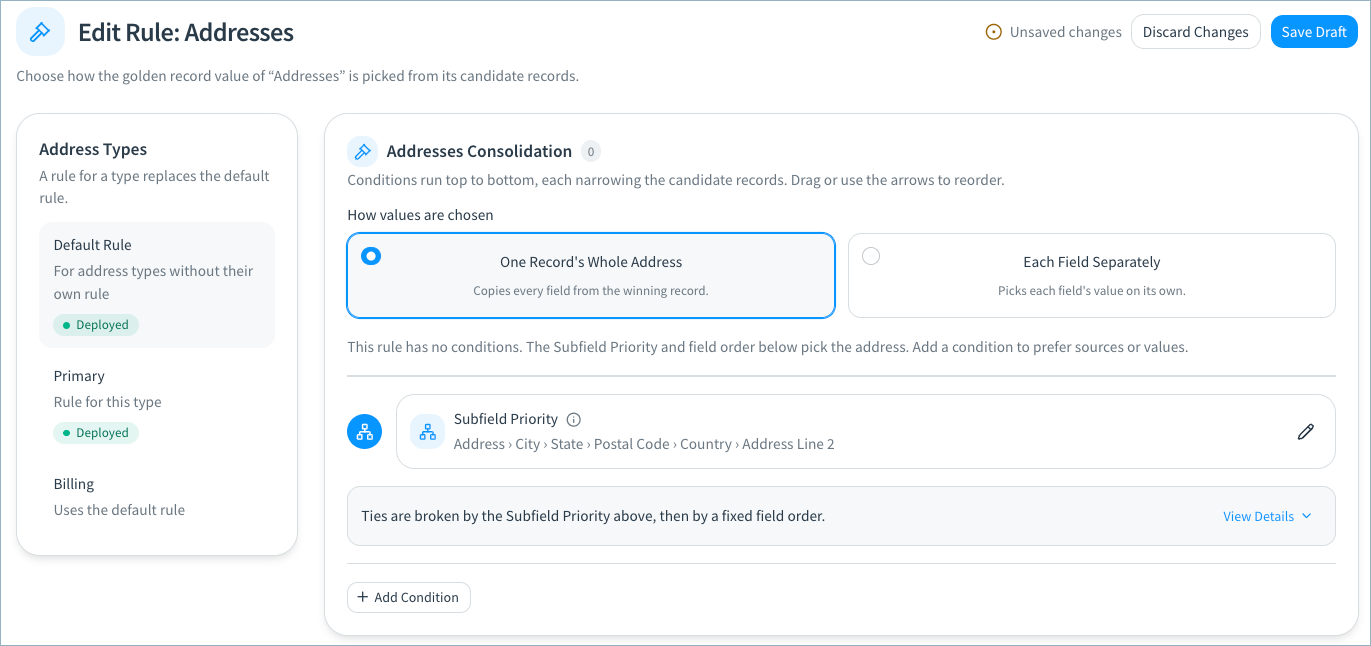
Use values from one record or pick each field separately
For each address, phone, and email type, you can choose whether to:
- Use attribute values from a single source record as the golden record values. This ensures, for example, that all Primary address attributes are selected from the same source record.
- Select each attribute value separately. In this case, the values for Primary address attributes could be selected from several different source records. Address might come from source record 1, while Address Line 2 might come from source record 2.
If you want to use address values returned from Google address enrichment as your golden record values for an address type, you must choose the Each Field Separately option.
Adjusting the Consolidation Rules
To adjust the record consolidation rules for address, phone, or email types:
- On the Data Products page, select Configure Data Product on the data product card.
- In the Golden Records card, select Consolidation rules. The Consolidation Rules page opens.
- In the Consolidation Rules table, select Addresses, Phones, or Emails.
- Review and adjust the Default Rule if needed.
- Select Default Rule from the Address Types, Phone Types, or Email Types section.
- Choose whether to use One Record’s Whole [Address, Phone, Email] or calculate Each Field Separately.
- Select Add Condition to add a new simple condition or priority condition, or specify source priority. See instructions in the section above for configuring conditions. Add additional conditions and reorder their priority as needed.
- If you are using One Record’s Whole [Address, Phone, Email], adjust tie-breaker logic if needed. Edit Subfield Priority to adjust the priority of address fields.
Tamr uses subfield priority to filter to the records that share the most common value for the highest priority attribute, and selects the golden record values from one of these source records. - If you are calculating Each Field Separately:
- Edit Subfield Priority to adjust the priority of address fields.
Tamr selects the golden record value for each field by first filtering to the records that share the most common value for the highest priority field. Then, Tamr selects the most common value for each individual field. - Specify the Final Value Condition to determine whether the Minimum Value (default) or Maxim Value is selected in the event of a tie.
- Edit Subfield Priority to adjust the priority of address fields.
- Tip: In the Preview Changes section, enter the record ID of an existing golden record to use to preview the updated rules. In the preview, new record values are show in green and the original values are shown in red.
- Select Save Draft to save your changes.
- To configure a rule for an individual address, phone, or email type:
- Select the type in the Address Types, Phone Types, or Email Types section.
- Select Add Rule for [Type].
- Adjust the rule as described in Step 4. Note that One Record’s Whole [Address, Phone, Email] is selected by default for the new rule.
Tip: To return a type to the default rule, select Use the Default Rule.
- Select Save Draft when you have finished updating the rules.
- Navigate back to the data product configuration page.
Deploying Your Draft Configuration
When you have completed the changes to your record consolidation rules, deploy the draft to update the configuration with these changes.
After deploying the configuration, new and updated golden records are consolidated using the new rules.
To deploy the draft:
- In the Pending Changes section, select Validate.
Correct reported configuration errors and re-validate if necessary. - Select Apply Draft and Deploy.
- Provide a description for this version of your data product configuration and select Deploy.
(Optional) Running the Reconsolidate Workflow
The Reconsolidate workflow applies the updated consolidation rules to all golden records in your SOR.
Use this workflow if you want to recalculate all golden records using the updated rules.
To run the Reconsolidate workflow:
- In the Workflows section, select Apply consolidation rule changes.
- Select Run Reconsolidate Workflow.
Tamr displays a real-time run status and updates with the timestamp of the last successful execution upon completion.
Updated 15 minutes ago