
Using Enriched Address Values in Golden Records
When Tamr enriches your source addresses, the attributes supplied by the Google Address enrichment source are added as additional record attributes.
Additionally, you can prioritize values from high quality Google address matches as golden record values for address fields in all data products.
You can choose to prioritize Google address results in the default rule for all address types and/or in rules for individual address types. For example, you may want to prioritize Google address results only for the Primary Address type. In this case, Tamr will use high quality Google address results as the golden record values for Primary Address attribute values if available.
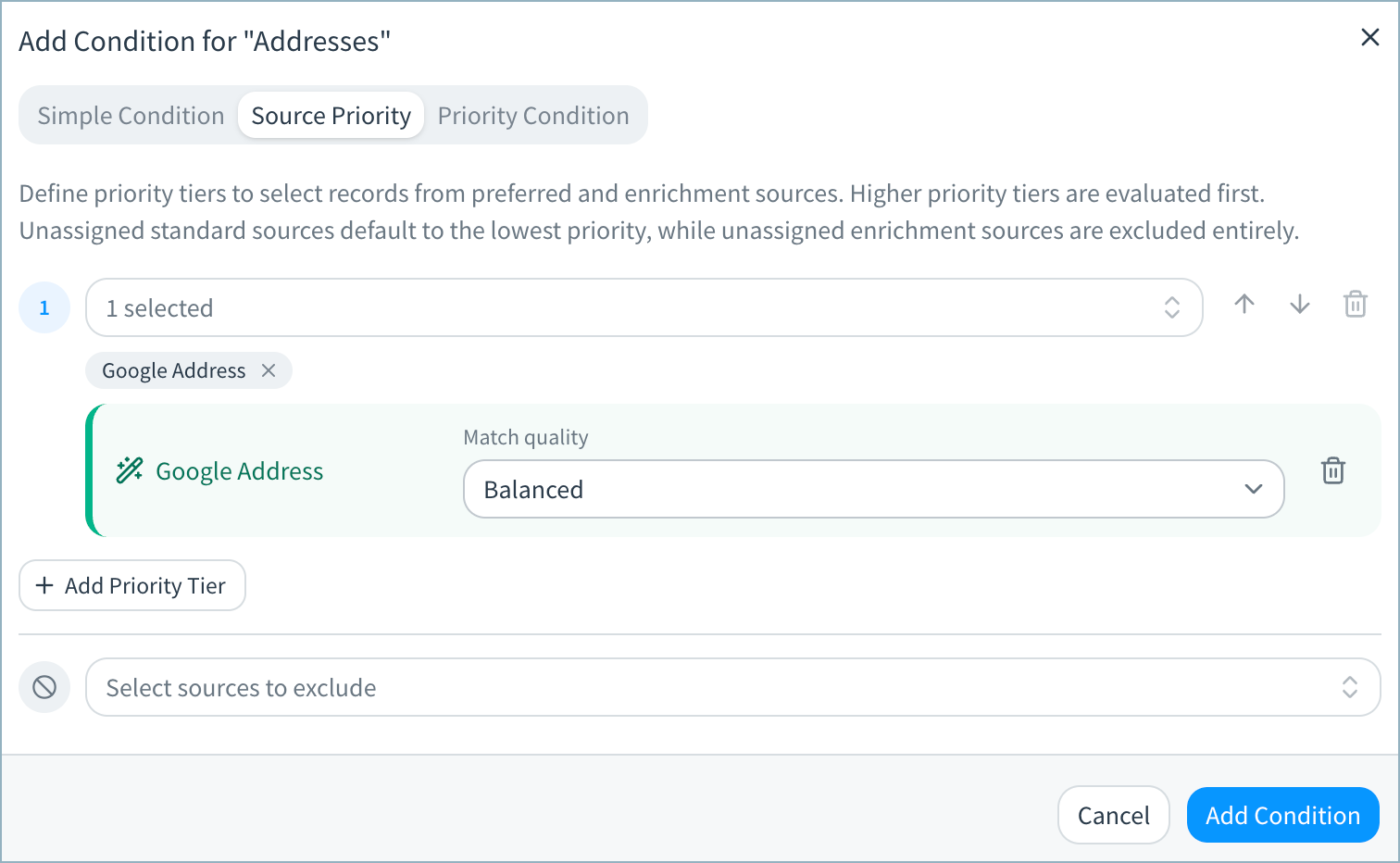
When prioritizing Google address results, you choose the minimum match quality for the address enrichment match:
- Strict: The location type for this match must be rooftop, which means that this match is based on a precise geocode.
- Balanced: The location type for this match must be rooftop, or range interpolated with a match type of single match. This means the match must be based on (at least) an approximation between two points, such as a road between intersection, and the address matched to a single complete geocoding location.
To prioritize address enrichment values in golden records:
-
On the Data Products page, select Configure Data Product on the data product card.
-
In the Golden Records card, select Consolidation rules. The Consolidation Rules page opens.
-
Select Addresses.
-
In the Address Types section, select the type you want to configure, or select Default Rule to set the default for all types. If the type uses the default rule, select Add Rule for [Type].
-
In the Consolidation section for the rule, select the Each Field Separately option.
-
Select Add Condition and then choose Source Priority.
-
On the Source Priority tab, configure priority tiers to select records from the Google Address source.
-
Choose the minimum match quality for the address enrichment match: Strict or Balanced.
-
Select Add Condition to add this condition.
-
Adjust other consolidation rules as needed.
-
Select Save Draft when you have finished updating the rule.
-
Return to the main configuration page.
-
In Pending Changes, Validate your configuration changes and then select Apply Draft and Deploy.
Updated 3 days ago